Table of Contents
Influencer Opt-In Report

The Influencer Opt-In Report provides merchants with comprehensive visibility into influencer program participation and acceptance rates. This report helps you track which influencers have accepted program invitations, monitor pending applications, and measure the effectiveness of your recruitment efforts. By analyzing opt-in trends over time, you can optimize your influencer recruitment strategy and identify patterns in program adoption.
Key Features
- KPI Metrics: Four key performance indicators to measure your program's health and growth
- Opt-in Data Table: View detailed information about each influencer's invitation and acceptance status
- Advanced Filtering: Filter influencers by date range, acceptance status, and search by name or email
- Sortable Columns: Sort by any column to analyze performance from different perspectives
- Date Range Analysis: Track opt-ins across any time period to understand trends
- CSV Export: Download filtered results for deeper analysis or team sharing
- Pagination: Navigate through large influencer lists with intuitive page controls
How to Access the Opt-In Report
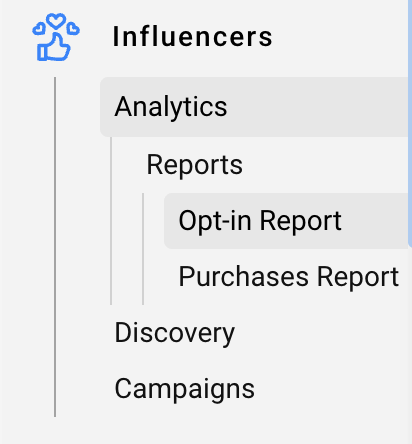
- Log in to your Friendbuy dashboard and navigate to the Influencers menu in the left sidebar

- Click Analytics to expand the submenu then click Reports to view available report options and select Opt-in Report
Understanding the KPI Metrics
The Opt-In Report displays four key performance indicators that give you a snapshot of your influencer program's health:
Total Opted In
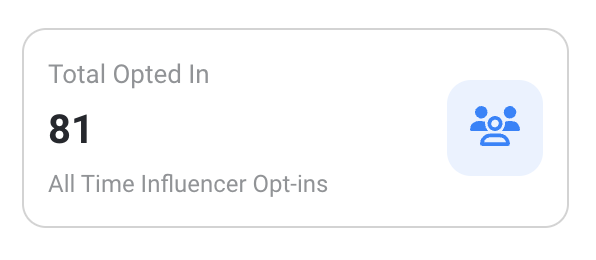
The total number of influencers who have accepted your program invitations
Calculation: Count of all influencers with "Active" status across your entire program history
Purpose: Understand the size and maturity of your active influencer network
New Influencers
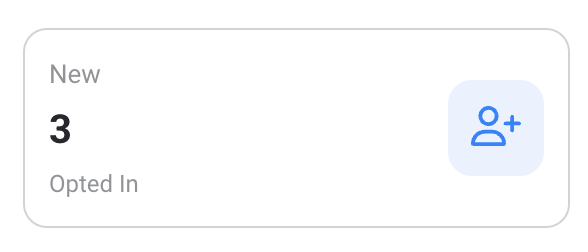
The number of new influencers who accepted invitations
Calculation: Count of influencers whose opt-in date falls within the date range selected
Purpose: Track recent program growth and the success of recent recruitment campaigns
Pending
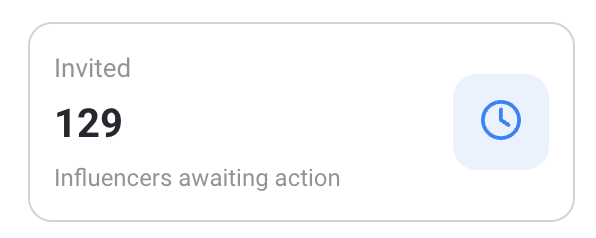
The number of influencers awaiting response to invitations
Calculation: Count of all influencers with "Pending" status (invitation sent but not yet responded)
Purpose: Identify influencers who need follow-up outreach or reminders
Opt-In Rate
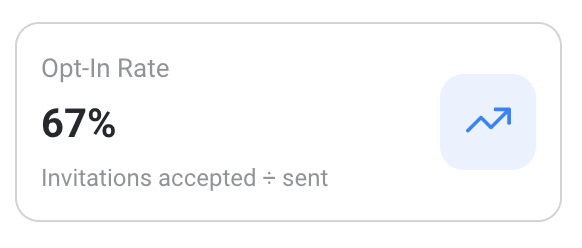
The percentage of invitations that resulted in acceptances during a selected date range
Calculation: (Active influencers with opt-in date in date range) ÷ (Invitations sent in date range) × 100%
Purpose: Measure the effectiveness of your recruitment messaging and timing
How to Filter the Data
Use the controls at the top of the page to narrow down and focus on specific influencers:
Date Range Picker
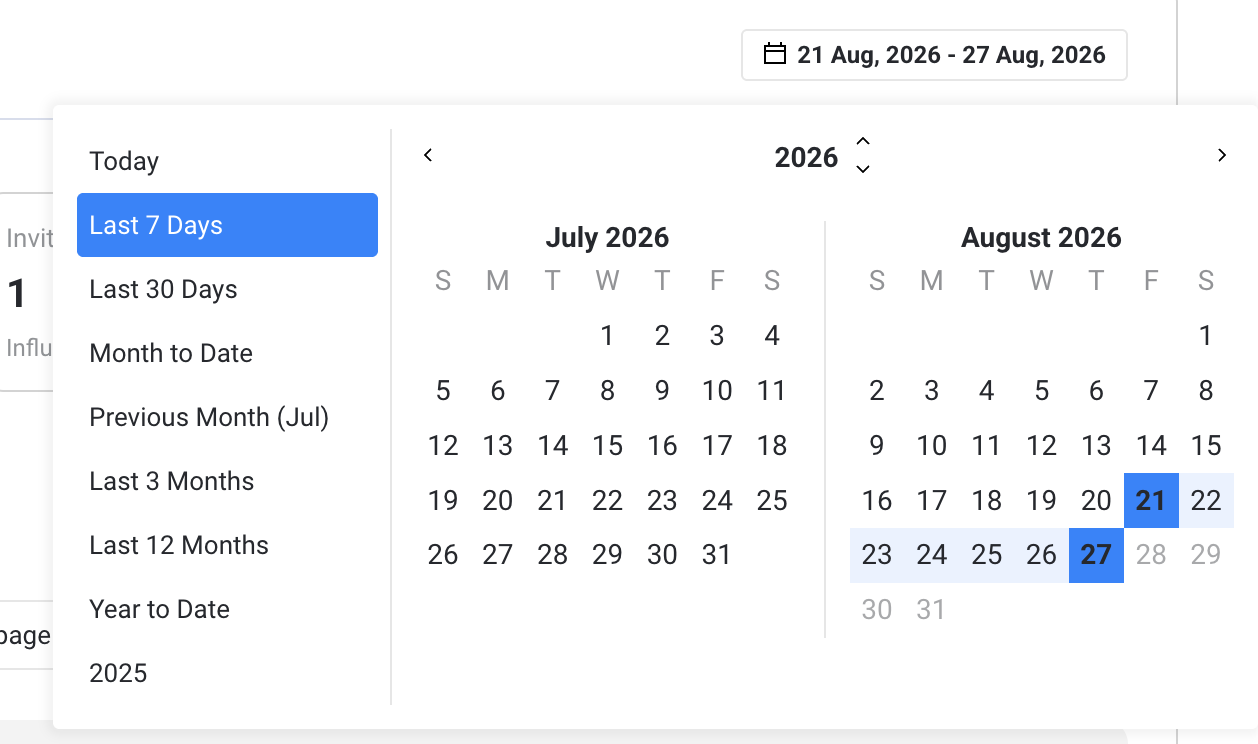
- Click the date range picker at the top-right of the page
- Select a start date and end date for your analysis
- The KPI metrics and table data update based on your selection
- Use preset ranges (Last 7 days, Last 30 days, Last 90 days) for quick selection
Search by Name or Email
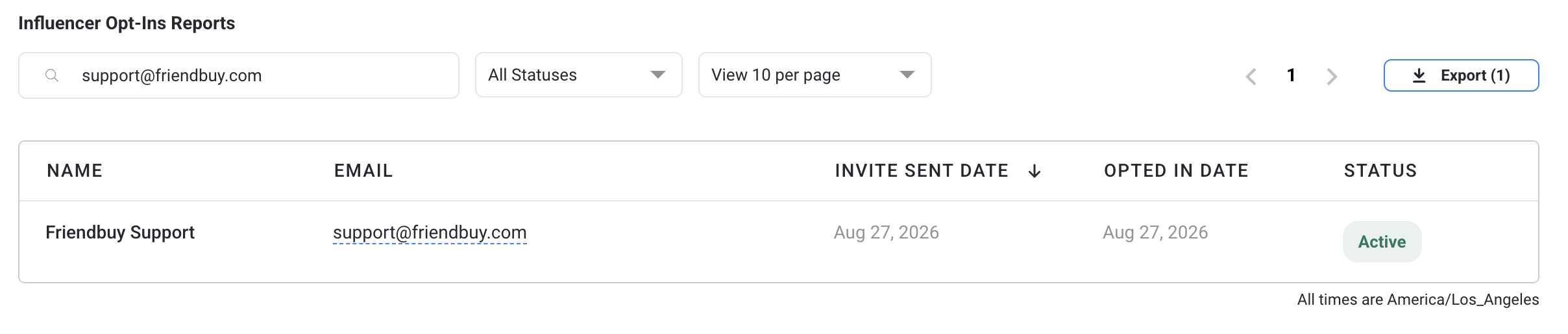
- Type in the search box to find influencers by name or email address
- Search is case-insensitive and matches partial text
- Results update immediately as you type
- Clear the search box to reset to the full list
Filter by Status
- Click the Status dropdown
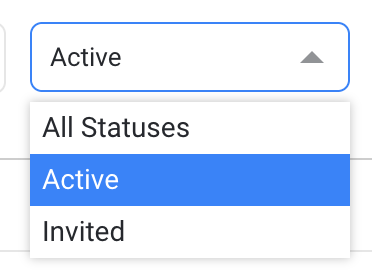
- Choose from the following options:
- All Statuses — view all influencers
- Active — influencers who have accepted invitations
- Pending — influencers awaiting response
Understanding the Data Table
The Opt-In Report table provides detailed information about each influencer's recruitment journey:
Column | Description |
Name | Full name of the influencer |
Email address for the influencer | |
Invite Sent Date | Date the program invitation was sent |
Opted-In Date | Date the influencer accepted the invitation |
Status | Current status in the program |
Sorting the Table

- Click on any column header to sort by that column
- Click again to reverse the sort direction (ascending to descending or vice versa)
- Sort indicators (arrows) show the current sort direction
- Only one column can be sorted at a time; clicking a new column resets the sort
How to Export Your Data
Export filtered influencer data to analyze offline, share with your team, or integrate with other tools:
- Apply any filters or sorts you want to include in your export
- Click the Export CSV button (located at the top-right of the table)
CSV Export Columns
The exported file contains the following columns:
- Name
- Invite Sent Date
- Opted-In Date
- Status
Common Tasks and Workflows
Find New Acceptances This Week
- Set the date range picker to "Last 7 days"
- Click the Status dropdown and select "Active"
- The table and metrics update to show only recent acceptances
- Review the "New This Month" KPI card for context
Follow Up with Pending Influencers
- Click the Status dropdown and select "Pending"
- Search for specific influencers if needed (optional)
- Review the email addresses in the table
- Note the "Invite Sent Date" to identify how long invitations have been pending
- Export the list to prepare outreach communications
Analyze Recruitment Effectiveness by Campaign Period
- Set the date range to cover your campaign period
- Monitor the "Opt-In Rate" KPI to see your acceptance percentage
- Compare the "New" count against invitations you know were sent during that period
- Sort by "Opted-In Date" to see the timeline of acceptances
Audit Program Growth Over Time
- Export data from different date ranges to build a historical record
- Compare "Total Opted In" across months to track growth
- Identify seasonal patterns in the "New This Month" metric
- Use trend data to plan future recruitment campaigns
FAQ
Q: Why does "Opted-In Date" show "—" for some influencers?
A: The dash indicates the influencer's invitation is still pending (they haven't accepted yet). Once they accept the invitation, this field will populate with their acceptance date.
Q: How often is the Opt-In Report data updated?
A: The Opt-In Report data is updated in real-time as influencers respond to invitations. Changes appear immediately when an influencer accepts or declines an invitation.
Q: Can I export data for a specific influencer?
A: You can search for a specific influencer by name or email, and then export the filtered results. The export will contain only matching records.
Q: What's the difference between "Invite Sent Date" and "Opted-In Date"?
A: "Invite Sent Date" is when you sent the program invitation. "Opted-In Date" is when the influencer accepted the invitation. The difference between these dates shows how long it took for acceptance. Pending influencers have no "Opted-In Date" yet.
Q: Does the Opt-In Rate include influencers who declined?
A: The Opt-In Rate only counts invitations that resulted in acceptances. Declined invitations are not included in either the numerator or denominator. The rate shows your success rate among sent invitations.
Q: Can I filter by multiple statuses at once?
A: Currently, you can filter by one status at a time (All Statuses, Active, or Pending). To analyze multiple statuses, you'll need to run separate queries or export data from different filters.
Q: What if I want to compare opt-in rates between different time periods?
A: Set the date range to your first period, note the Opt-In Rate KPI, then change the date range to your second period. You can export data from both periods for a detailed side-by-side comparison.
Q: Is there a limit on how many rows I can export?
A: CSV exports use the same limits as other Friendbuy reports. The export will include all filtered results up to the export limit. Check your export settings for any applicable row limits.
Need More Help?
If you have additional questions or encounter issues with the Influencer Opt-In Report, please contact our support team at support@friendbuy.com.