Getting Started with Friendbuy
Getting Started with Referral
Plan Your Referral Program Implementation Team
Merchant SDK Setup with Google Tag Manager
How to Join Your Team on Friendbuy
Best Practices
Referral Program Placements
Friendbuy Referral Emails
Driving Referral Program Awareness
Referral Offer Strategies
Limited-Time Offer Promotions in Referral
Referral Contests, Sweepstakes and Giveaways
A/B Testing Best Practices
Account Management
How can I invite my team to the Friendbuy platform?
Managing Your Account Settings
How to Set Up and Change Your Email Sender
Referral Campaign Management
Widgets
How to Create a New Theme
How to Make Changes to a Theme
Widget & Email Image Specifications
How to Apply Theme Changes to a Widget
How to update a Widget or Theme to the latest version
How to Set Up a Ribbon
How to Set Up an Advocate Landing Page
How to Set Up a Friend Landing Page
How to Set Up a Post-Purchase Overlay
How to Set Up an Account Page Widget
How to configure your Terms & Conditions
How to Test a Widget
How to Set up a Self-Referral Overlay
How to Set Up a Customer Dashboard
How to Personalize Your Widgets with the Advocate name
Character Count Recommendations
Campaign Settings
How to Create a New Referral Campaign
How to set up Referral Code Personalization for PURLs
Setting Up an Advocate Reward
Setting Up a Friend Incentive
Shopify Coupon Codes Integration
How to Run an A/B Test
How to Change Your Referral Offer
Setting Up Max Clicks for Referral Links
How to Generate Personalized URLs (PURLs) through Our API
How to Generate Personalized URLs (PURLs) for Advocates
How to Configure Tiered Rewards
How to Archive a Referral Campaign
Understanding A/B Test Analytics
How to Duplicate Your Campaign
How to Set Up a Redirect for Limited Time Campaigns
How to Create a Product Sharing Referral Campaign
How to set up Code Based Sharing
Code Banks
How to Create a New Code Bank
How to Generate Coupons in Bulk for Shopify
Setting Up Low Code Bank Notifications
How to Add Codes to an Existing Code Bank
Emails
Email Types for Your Referral Program
How to Add DNS Records for Email Sender Verification
How to Create, Edit, and Manage Emails
How to set up an Expiration Reminder email
How to Assign an Email to a Campaign
Referral Reward Store
Regional Restrictions: Block Your Referral Program in Specific Countries
Generate a QR Code for a Referral Link (API)
Store Credit Rewards for Referral (Shopify Integration)
Loyalty Program Management
Uploading Data From a Legacy Loyalty Program
How to Set Up Purchase Based Member Tiers Program
How to Set Up a Points-Based Member Tier Program
How to Set Up Points Redemption Options
How to Set Up Shopify Coupon Code Integration in a Loyalty Earning Event
How to Set Up a Loyalty Opt-in CTA
Understanding the Loyalty Analytics
Manually Reward Customers via CSV Upload
Rolling Points Expiration Reminder Emails
Manually Opt a Customer In or Out of Loyalty
Receipt Scanning for Loyalty
How to Display Loyalty Points on a Product Detail Page (PDP)
How to Create an Earning Event
Cashback Rewards for Loyalty (Shopify Integration)
How to Configure an Earning Event in your Loyalty Program
How to set up expiration for Points or Account Credit
How to Set Up the Loyalty Progress Bar Widget
How to Create, Edit, and Manage Loyalty Emails
Integrations
Attentive Integration
Send a Triggered Text to Prompt a Referral After a Positive Review with Attentive and Okendo
Automatically Prompt a Referral Post Purchase in Attentive
Send Referral Program Text Messages Through Attentive
How to Text Coupon Codes to Advocates using Attentive Journeys
Make it Easy for Advocates to Refer by Sending Their PURL Through SMS using Attentive Journeys
How to Send Advocates a Reminder Text to Redeem Their Coupon Codes through Attentive Journeys
How to Send Referred Friends a Reminder Text to Redeem Their Coupon Codes through Attentive Journeys
How to reward Loyalty Members for signing up for Attentive text messages and emails
How to Include a Customer's Loyalty Points Balance in an Attentive Text
How to Send a Coupon Code to a Referred Friend using Attentive Journeys
How To Enable the Attentive Integration
Braze Integration
How To Enable The Braze integration
How to Send One Time Emails with Referral Links through Braze
How to Send Referral Links Post Purchase Through Braze
How to Email Coupon Codes Through Braze to Advocates and Friends After They Are Distributed by Friendbuy
How to Promote Your Referral Program via SMS (Through Braze)
How to Trigger a Text to Remind Advocates to Redeem Referral Rewards (Through Braze)
How to Trigger a Text to Remind Referred Friends to Redeem Their Incentives (Through Braze)
How to Send Coupon Codes Through Braze SMS to Advocates and Friends After They Are Distributed by Friendbuy
How to Prompt a Referral After a Positive Review with Friendbuy and Trustpilot (via Braze)
Cordial Integration
DataGrail Integration
Ethyca Integration
Fivetran Integration
Iterable Integration
Trigger a Direct Mail Campaign to Drive Referral Program Awareness (Friendbuy x Iterable x Poplar)
How to Enable the Iterable Integration
How to Automatically Text Referred Friends their Coupon Code with Iterable Journeys
How to Prompt a Referral After a Positive Review with Friendbuy and Trustpilot (via Iterable)
Increase Referral Program Awareness with a Dedicated Email Blast through Iterable Journeys
Klaviyo Integration
How to send Referral Links Post Product Review (Yotpo + Klaviyo)
How to Prompt a Referral After a Positive Review with Friendbuy and Trustpilot (via Klaviyo)
How to send one time emails with referral links through Klaviyo
How to Send Referral Links Post Positive Product Review (Okendo + Klaviyo)
How to Send Referral Links Post Purchase through Klaviyo
How to Promote Your Referral Program via SMS (Through Klaviyo)
How to Enable the Klaviyo Integration
How to Distribute a Reward To Your Loyalty Members on Their Birthday (Through Klaviyo)
How to Send a Customer their Loyalty Points Balance Through Klaviyo
How to Email Coupon Codes Through Klaviyo to Advocates and Friends After They Are Distributed by Friendbuy
How to Reward Customers for Providing a Review Through Yotpo via Klaviyo Through Your Loyalty Program
How to Send Reminder Texts to Redeem Loyalty Rewards Through Klaviyo
Upgrading to Klaviyo OAuth with your Friendbuy Integration
How to Reward Customers for Providing a Review Through Okendo via Klaviyo Through Your Loyalty Program
How to Trigger a Text to Remind Advocates to Redeem Referral Rewards (Through Klaviyo)
How to Trigger a Text to Remind Referred Friends to Redeem their Incentives (Through Klaviyo)
How to Send Coupon Codes through Klaviyo SMS to Advocates and Friends After They are Distributed by Friendbuy
How to Reward Customers For Subscribing to Klaviyo Emails and Texts Through Your Loyalty Program
How to Segment Customers Based on Tier Status in Klaviyo
How to Reward Customers for Providing a Review Through Stamped via Klaviyo Through Your Loyalty Program
Kustomer integration
Ordergroove Integration
Recharge Integration
Friendbuy Recharge Integration: Renewal Milestone Rewards
How to Enable Friendbuy's integration with Recharge
Salesforce Commerce Cloud
Segment Integration
How to Integrate Friendbuy as a Segment Source
How to set up the Segment Web-Mode (Destination Actions) Integration
Shopify Integration
How to Enable the Shopify Integration
Shopify Checkout Extensibility
Checkout Extensibility - Shopify Pixel Tracking
Shopify Theme App Embed
How to Add the Friendbuy Referral Widget and Referral Dashboard to Shopify Customer Accounts
How Friendbuy Powers Loyalty Point Refunds with Shopify
How to Integrate Friendbuy with Shopify POS for Loyalty and Referral
Tango Card Integration
Tremendous Integration
How to Integrate Your Friendbuy Loyalty and Referral Program with Rise.ai to Issue Stackable Gift Cards and Account Credit
How to enable the Postscript Integration
Friendbuy + Stripe Integration (Referral Program)
How to Integrate with Ordergroove
Configuring the Friendbuy MCP in Claude and ChatGPT
Fraud Prevention
How to Block a Referral Code
How to Block an Email Address
Fraud Settings and Business Rules
Configuring a Global Reward Allowance
Configuring a Referral Link Fallback URL
How the Similar Email Address Fraud Check Works
Customer Service Portal
How do I check the status of a referral?
Customer Profile Name Updates from Widget Submissions
How to Manually Add or Remove Credit / Points to a Customer's Account
Why was my customers reward rejected?
The Referred Friend put in their email address but didn’t get their coupon code. How do I find this?
Resend Reward Email
Override a Rejected or Pending reward
How to Search for a Customer Profile
How to Search for a Customer’s Referral Link in the Friendbuy Platform
How to create a Manual Referral
Why didn't the Advocate receive a Reward for a successful referral?
Reasons for Rejected Advocate Rewards and Friend Incentives
Analytics & Reports
Performance Overview
Reports
Mark purchases as "Test" to maintain clean reporting
Top Advocates Report
Scheduled Reports
Account Credit or Points Statement Export
Exporting Reports from Friendbuy
Email & SMS Report
Advocate Rewards Report
Purchases Report
Friend Incentives Report
Understanding the Codes Report
Dashboards
Referral Performance Analytics Dashboard
Advocate Referral Widget Source Tracking
Referral Analytics Dashboard Overview Metrics
Advocate Reward Email Analytics
Loyalty Email Analytics
Common FAQs
What does Fraud Protection do?
How to Access my Billing Information
What is a typical referral flow?
How to Apply Theme Changes to a Widget
Difficulty downloading reports after you receive an export email?
What are Fraud Checks, Tier Checks, and Rules Checks in the Rewards Report?
How do I change my password?
What is a self-referral redirect URL?
What do the Reward Statuses and Definitions mean?
How to Create a New Theme
What is a Friend Widget?
How are Conversions Tracked in Friendbuy?
A Glossary of Terms
How long is the Referred Friend attribution window
Common Scenarios and Troubleshooting Steps
Developer Documents
Influencer Program Management
- All Categories
- Referral Campaign Management
- Campaign Settings
- How to Create a Product Sharing Referral Campaign
How to Create a Product Sharing Referral Campaign

How to Create a Product Sharing Referral Campaign
Product Sharing is a powerful way to let your customers easily recommend specific products to their friends through personalized referral links. Instead of sharing your entire store, advocates can highlight individual items they love, making the referral experience feel more authentic and personal. In this help article, we'll walk you through how to create and configure a new Product Sharing campaign.
Getting Started with Product Sharing
Step 1: Create a new referral campaign
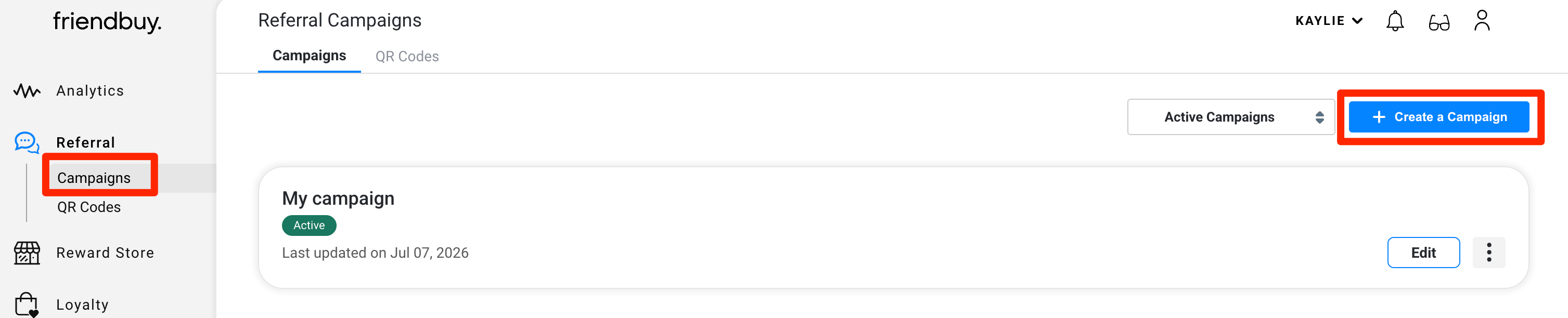
Navigate to Referral, then click the blue Create a Campaign button on the top right-hand corner of the screen.
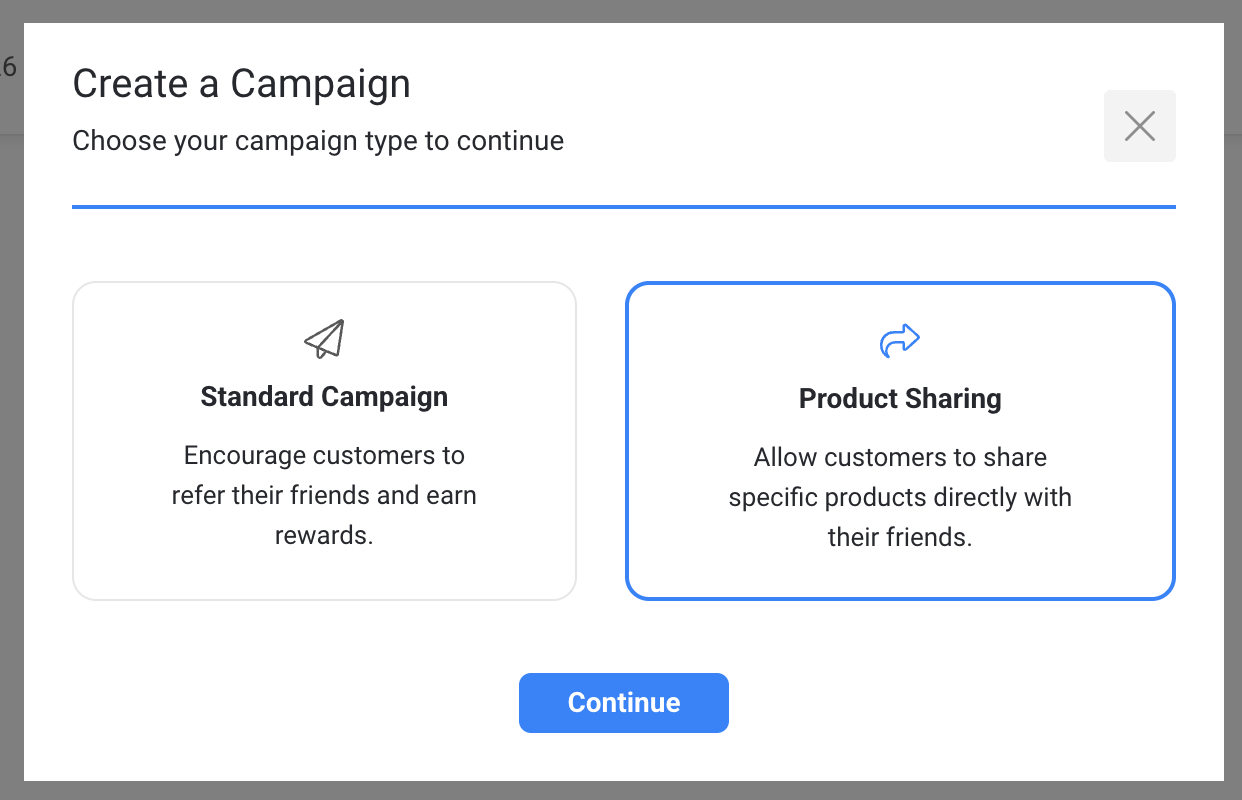
Select Product Sharing. For creating a standard referral campaign, please refer to How to Create a New Referral Campaign guide.
Step 2: Set Your Campaign Settings
Enter a Name of your new campaign that is unique from your other existing campaigns and a Campaign Description (optional). Once done, click the blue Next Step button.
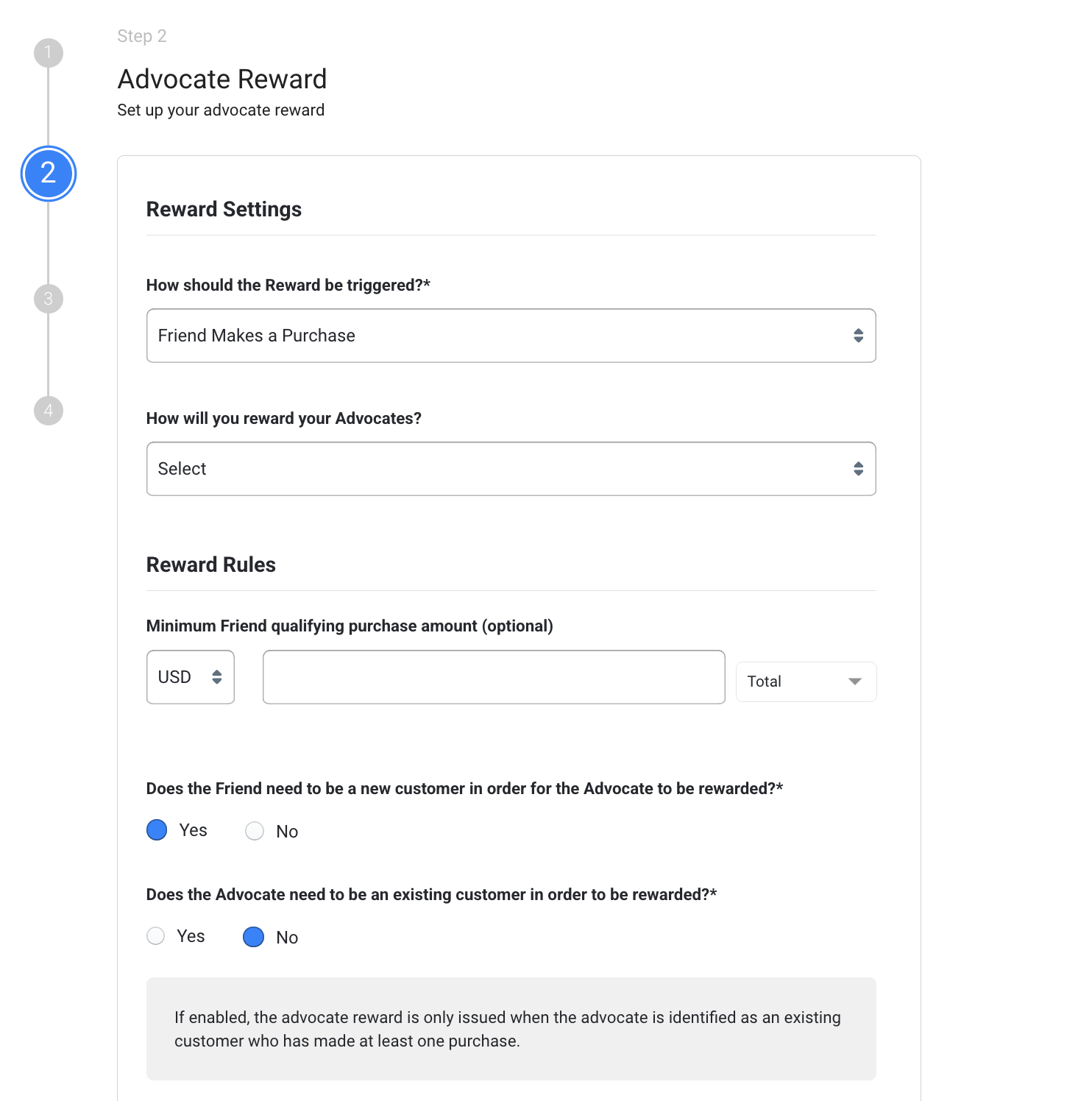
Step 3: Define the Advocate Reward
The Advocate Reward is the reward distributed to an advocate for successfully referring Friends. Select the reward parameters and settings to define the reward trigger, reward, and reward rules. These settings can always be adjusted after the initial campaign creation as well.
Step 4: Configure the Friend Incentive
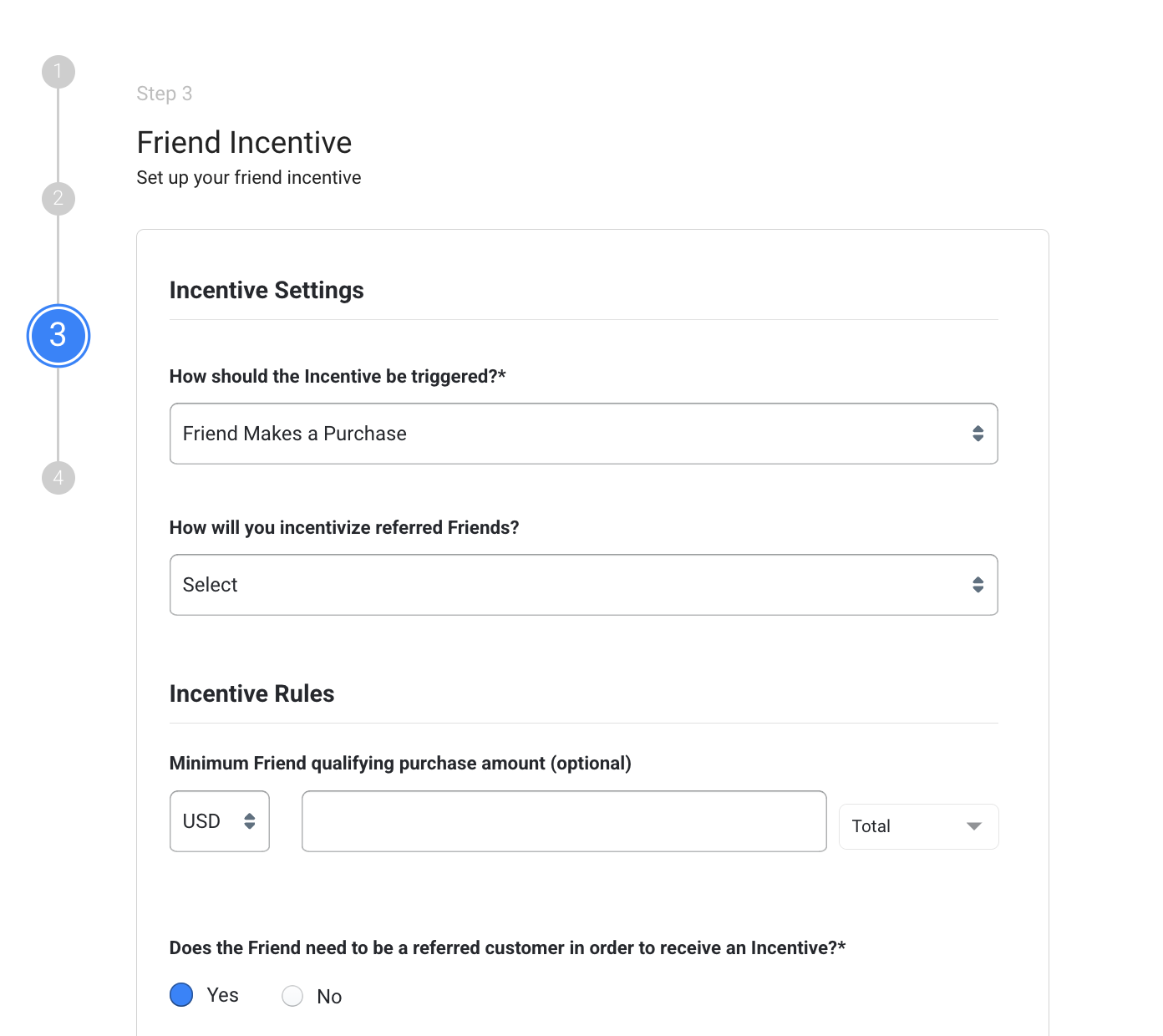
The Friend Incentive is the incentive reward distributed to a referred friend for completing a designated action. Select the incentive parameters and settings to define the incentive trigger, incentive to be distributed, and incentive rules. These settings can always be adjusted after the initial campaign creation as well.
Configuring the Product Sharing CTA
Step 1
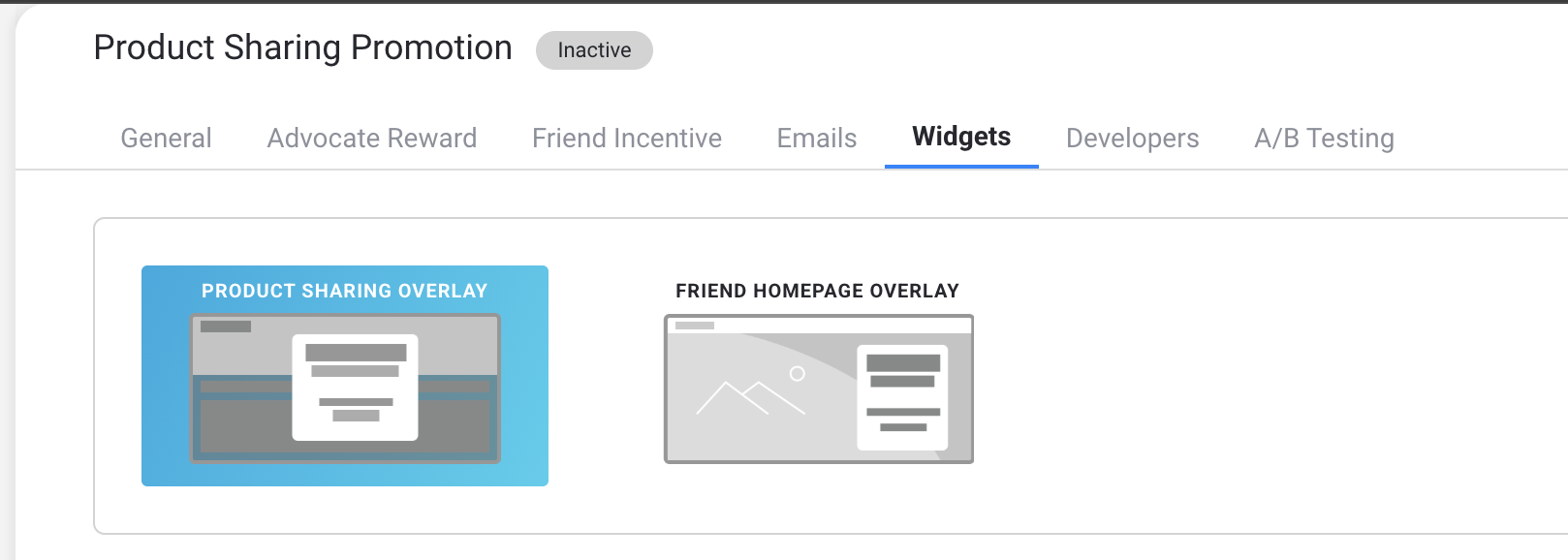
Navigate to Widgets, then click the Product Sharing Overlay.
Step 2
Now we'll configure the Share Button Settings. This is where you determine how your customers will interact with the Product Sharing widgets.
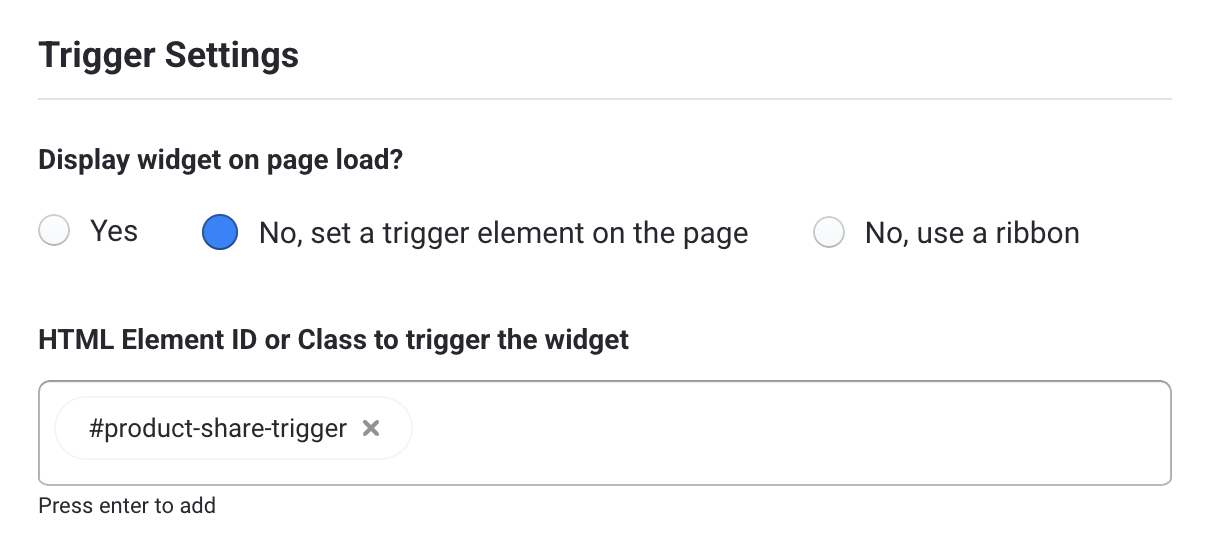
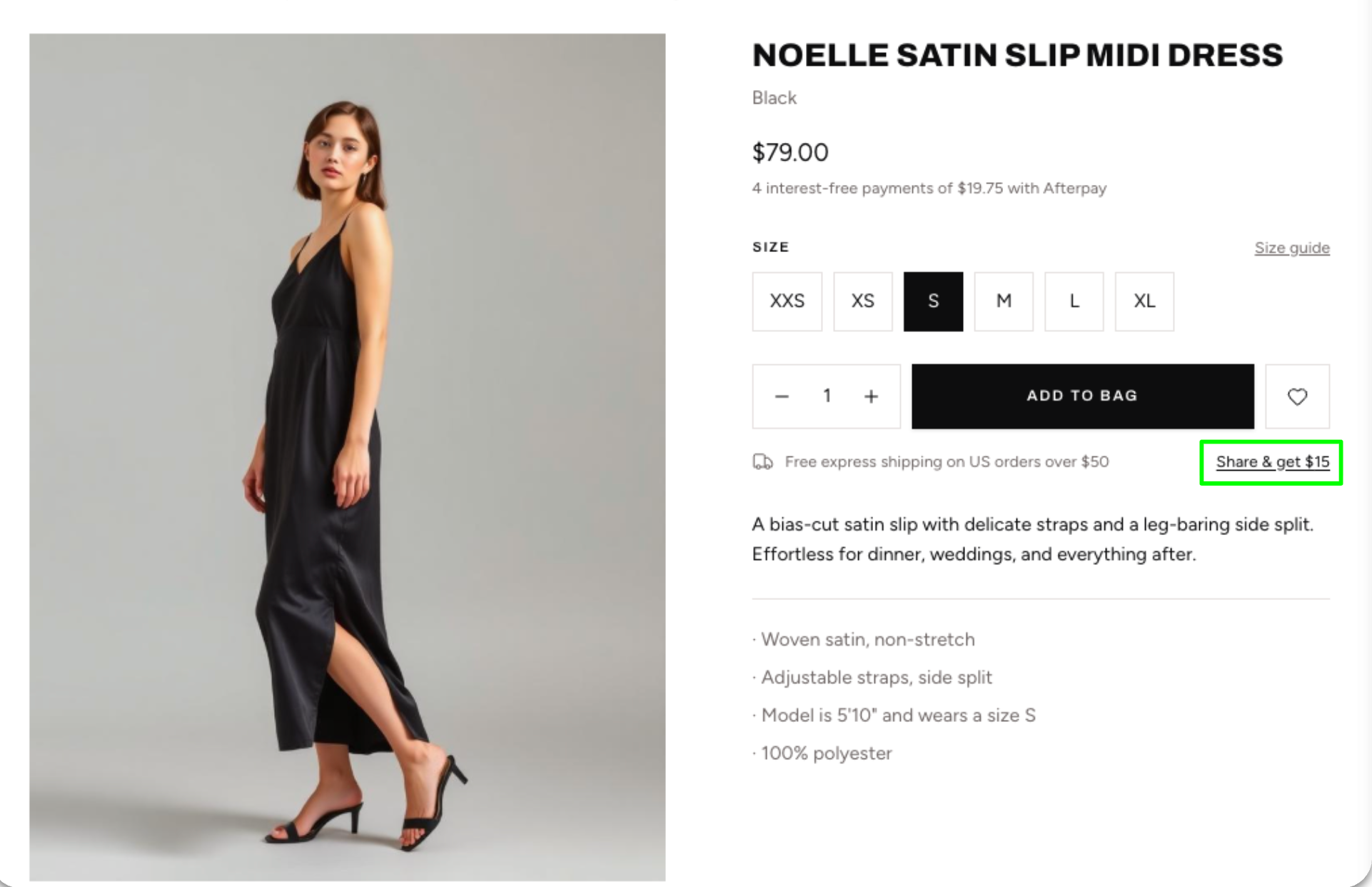
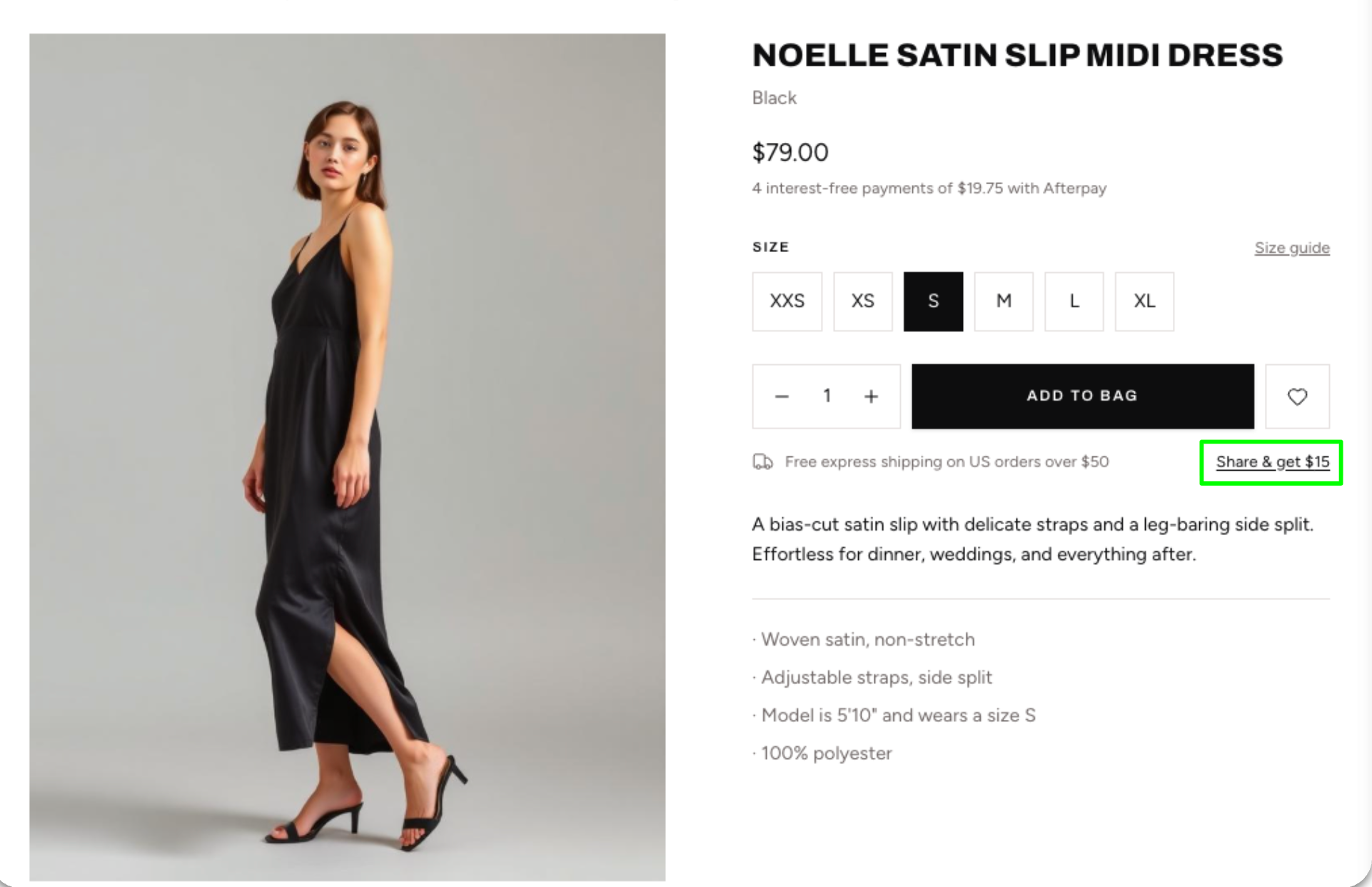
The following steps will review how to set up a native site element (CTA button) to trigger the widget on each product detail page you wish. Under the Trigger Settings in the 'Display widget on page load?' setting select 'No, set a trigger element on the page'. In the HTML Element ID or Class to trigger the widget field define the element ID that will trigger the widget to display. For instance, your native site CTA can state the offer terms such as "Share & get $15" as seen in the example below.
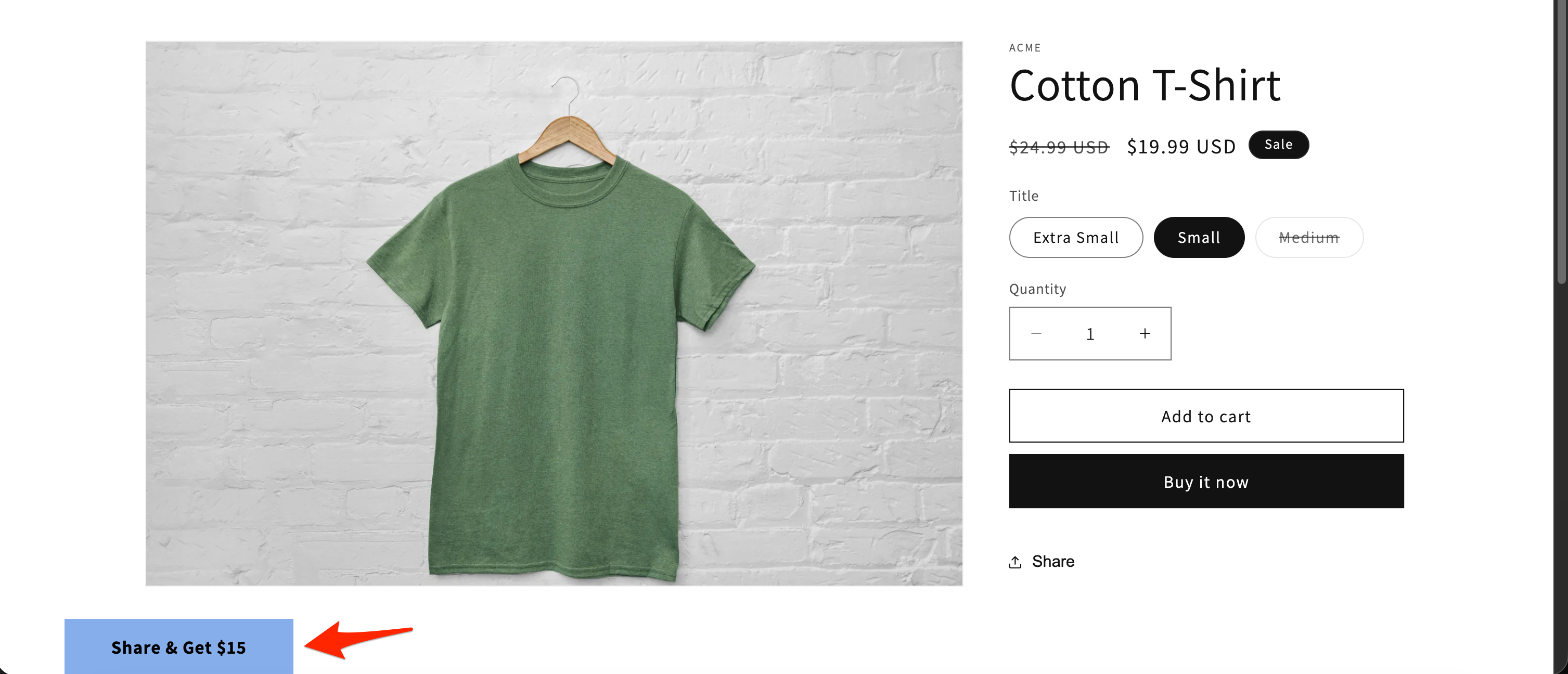
Alternatively, you can always choose to set up the widget on page load instead or set up a ribbon to trigger the widget instead. To set up a ribbon to trigger the widget, under the Trigger Settings in the 'Display widget on page load?' setting select 'No, use a ribbon'.
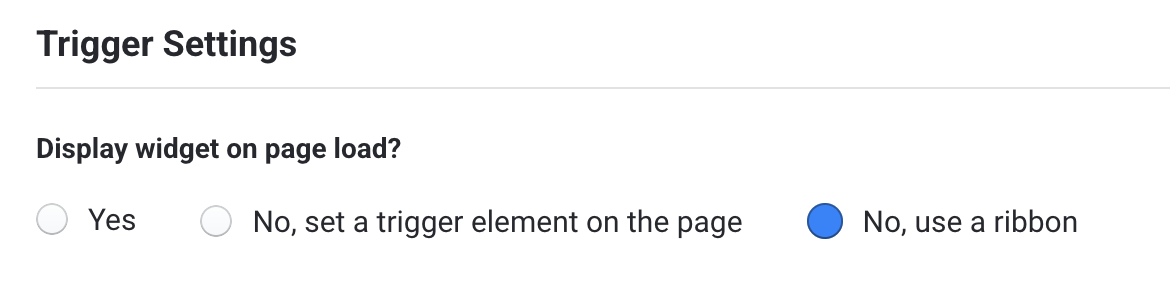
Then choose 'Select a ribbon template' and choose the available template or create a new one.
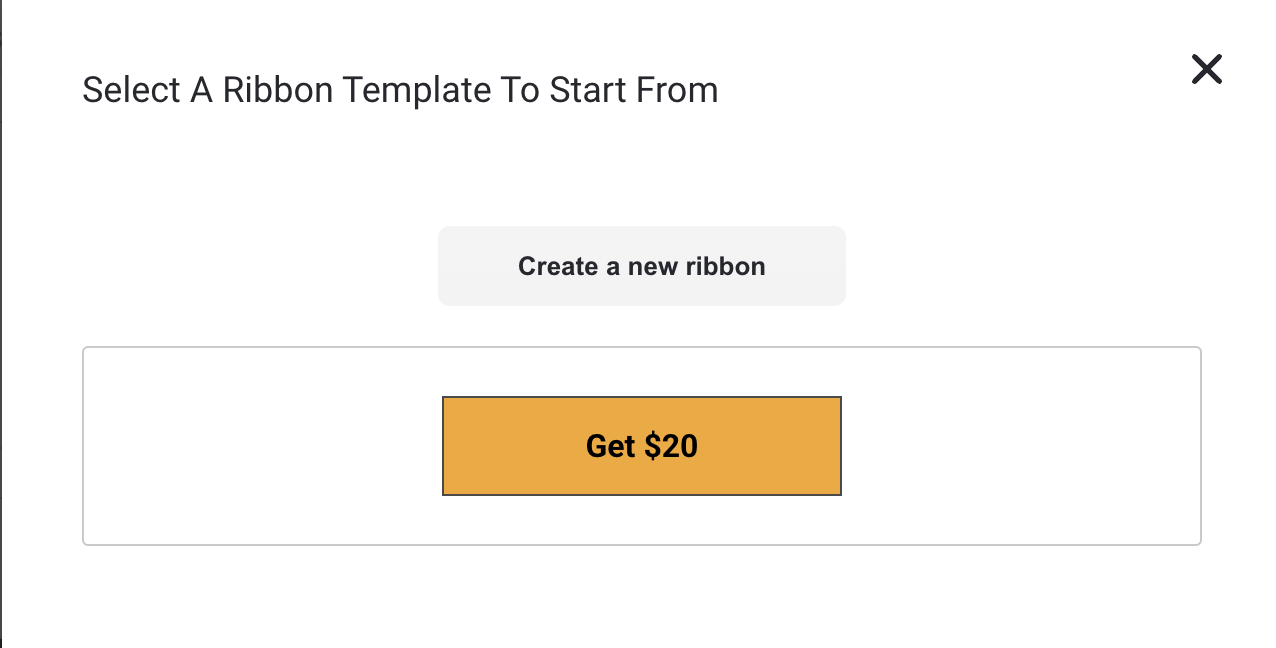
Step 3
In this step, you'll customize the appearance of your Product Sharing CTA to match your brand and create an optimal user experience.
If you choose to trigger the widget with a ribbon then in the Ribbon Editor, configure the following:
Name: Identifiable name of the CTA button.
Content: The text that will appear on the button (for example, "Share This Product" or "Tell a Friend About Product X").
Positioning: Controls where on the page the button will appear.
Size: Configure the size of the CTA button.
Button Text: Select a font and color for the text to ensure readability across all product page backgrounds.
Button Container: Choose a color that stands out on your product pages and matches your brand palette. Consider using a contrasting color that draws attention without clashing with your site design.
Close Button: Enable the option to add a close button to dismiss the ribbon.
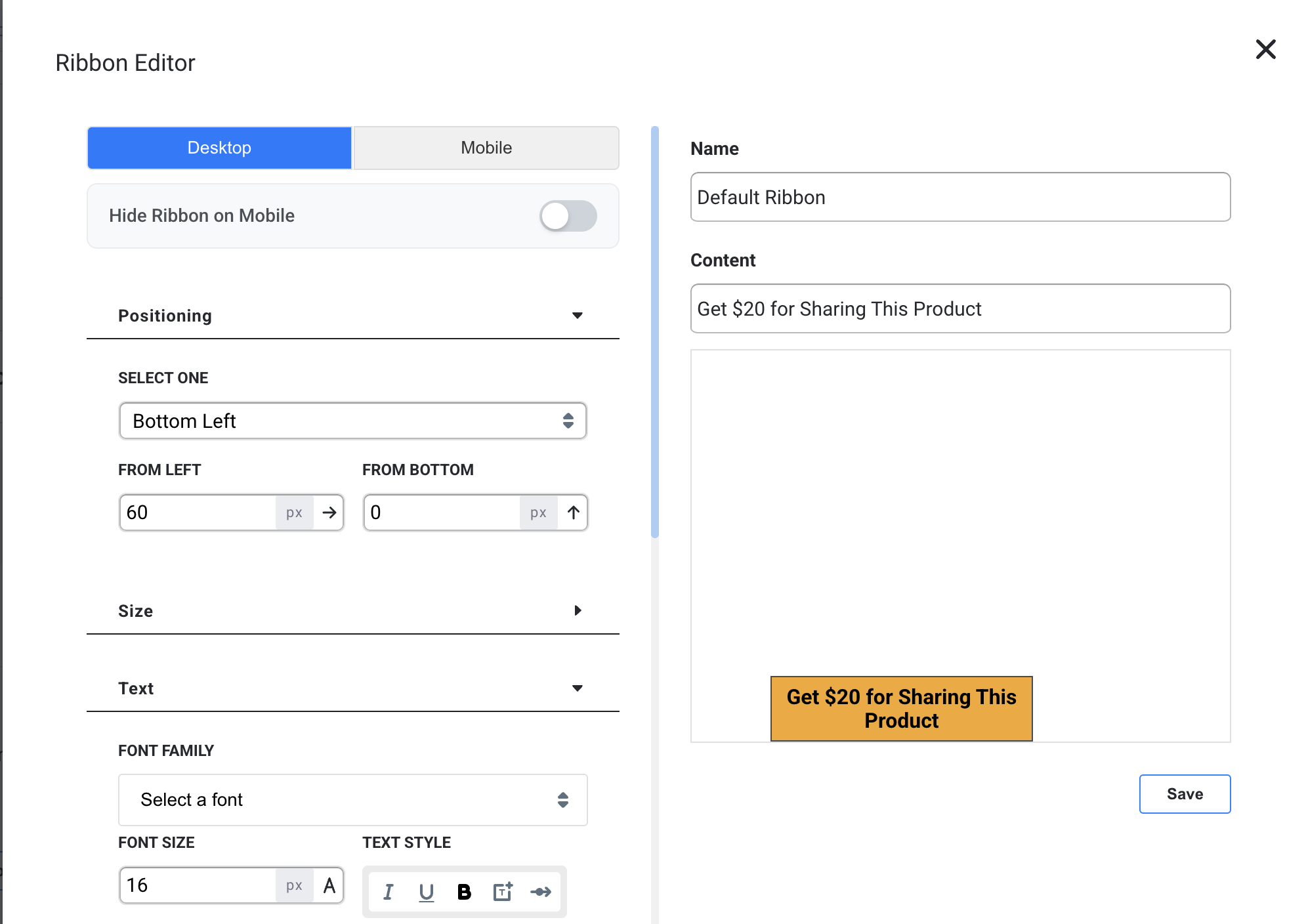
Once you've finalized the button appearance, click Save.
Step 4
Configure the Location Settings to determine where the CTA ribbon or CTA trigger element on the page should populate on your website. Define the URLs to display the CTA ribbon according to the products you wish to have advocates share and promote.
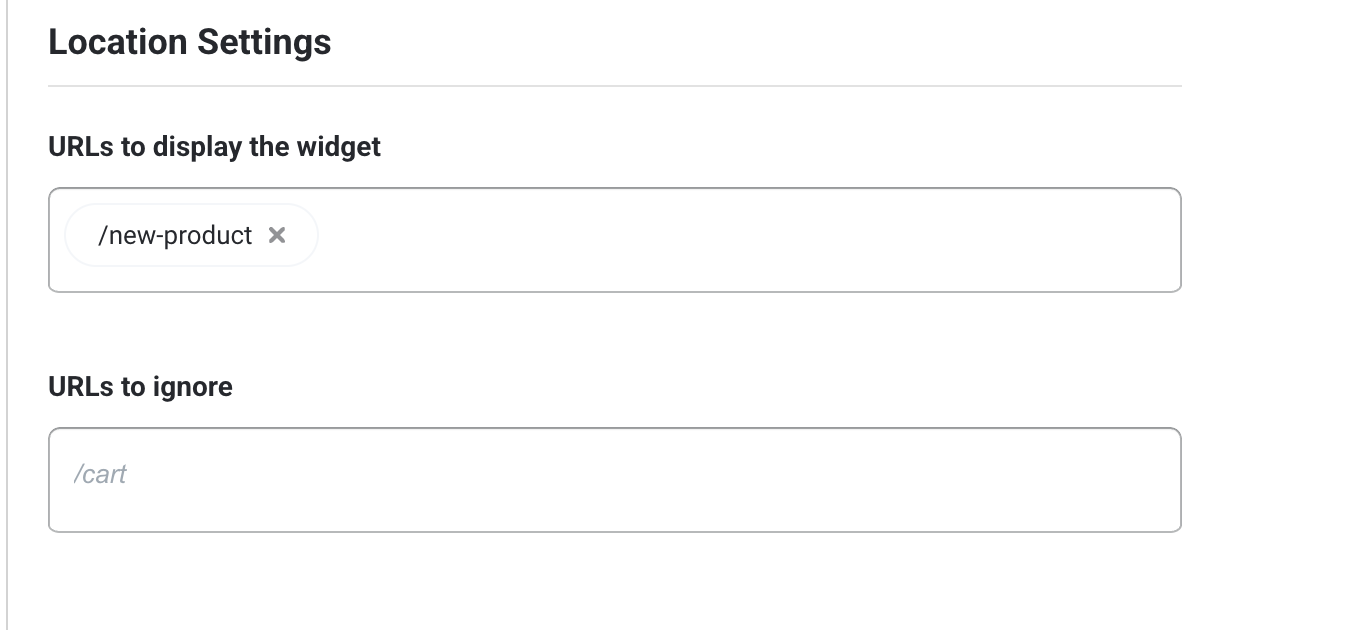
Triggering the widget from a native CTA trigger element on product pages:
Triggering the widget from a Ribbon with a CTA:
Next Steps
You'll need to create and design the customer facing Emails and Product Sharing Widgets before launching your campaign.
- Learn more about creating emails and then assigning them to your campaign.
- Learn more about setting up customized Themes and Widgets for your campaign.
For assistance with setting up Emails or Widgets, reach out to your Customer Success Manager or support@friendbuy.com with questions.
Reviewing a Product Sharing Experience
- Navigate to a product page on your store with an active Product Sharing widget enabled
- Locate the Product Sharing button
- Click to share the product and attempt to share via your selected method
- Verify that the referral link is generated correctly
- Test clicking the link from the friend's perspective to confirm they land on the correct product page
Learn how to test widgets properly here.
Best Practices for Product Sharing
Incentivize Sharing: Pair product sharing with your referral rewards. Make sure advocates understand what they'll earn by sharing specific products.
Optimize for Mobile: Since many customers share on mobile devices, ensure your share buttons are easily clickable and the sharing flow is mobile-friendly.
Track Performance: Use the analytics dashboard to monitor which products are shared most frequently. This data helps you understand customer preferences and optimize product recommendations.
Clear Call-to-Action: Make the share button prominent and use action-oriented language like "Share & Earn" rather than generic text.
Monitor Share Links: Regularly review shared products to identify top performers and adjust your marketing strategy accordingly.
Troubleshooting Product Sharing
Share Button Not Appearing
- Verify that Product Sharing is enabled in your Widget Settings
- Check that the widget has been deployed to your product pages
- Clear your browser cache and refresh the page
- Ensure you're viewing a product page where the widget is active
Referral Link Not Working
- Confirm the Landing Page URL is correct and accessible
- Verify that the referral code is being generated properly in your Code Bank
- Check your fraud settings to ensure shared links aren't being blocked
- Test the link in an incognito window to rule out browser cache issues
Analytics Not Showing Shared Products
- Allow 24 hours for data to populate in your analytics dashboard
- Verify that tracking is enabled for your referral campaign
- Check that the referred friend completed a purchase to register in reports
For additional help, reach out to support@friendbuy.com.