Referral Reward Store

Overview
The Friendbuy Reward Store is an embedded, brandable storefront you add to your website where advocates and referred friends can browse and redeem the rewards they have earned. Instead of automatically pushing a single fixed reward, the Reward Store lets customers choose the reward that matters most to them. There are two types of Reward Store users:
- Advocates — your existing customers who referred a friend. After a successful referral they earn credits they can redeem in your reward store.
- Referred Friends — new customers who used an advocate's link and made a qualifying purchase. You can reward them with credits to spend in a separate reward store experience.
How It Works — End to End
- Here is the complete flow from referral to redemption:
Who | What happens | |
1 | Advocate | Shares their referral link with a friend. |
2 | Friend | Clicks the link and makes a qualifying purchase. |
3 | Friendbuy | Automatically credits the advocate's balance with the configured point amount. Optionally credits the friend too. |
4 | Advocate / Friend | Receives an email notification linking to your Reward Store page. |
5 | Advocate / Friend | Logs into your site, visits the Reward Store, and browses available rewards. |
6 | Advocate / Friend | Clicks Redeem on their chosen reward, confirms, and receives it instantly. |
Create Your Redemption Options
Redemption Options are the individual rewards customers can claim from your store — for example, "10 Points for a $15 Coupon" or "500 Points for a $50 Gift Card." You can create as many as you need, organized by point currency.
How to Create a Redemption Option
- In your Friendbuy account, click Reward Store in the left navigation menu
- Click the Redemption Options tab.
- Click + Add Redemption Option in the top right corner.
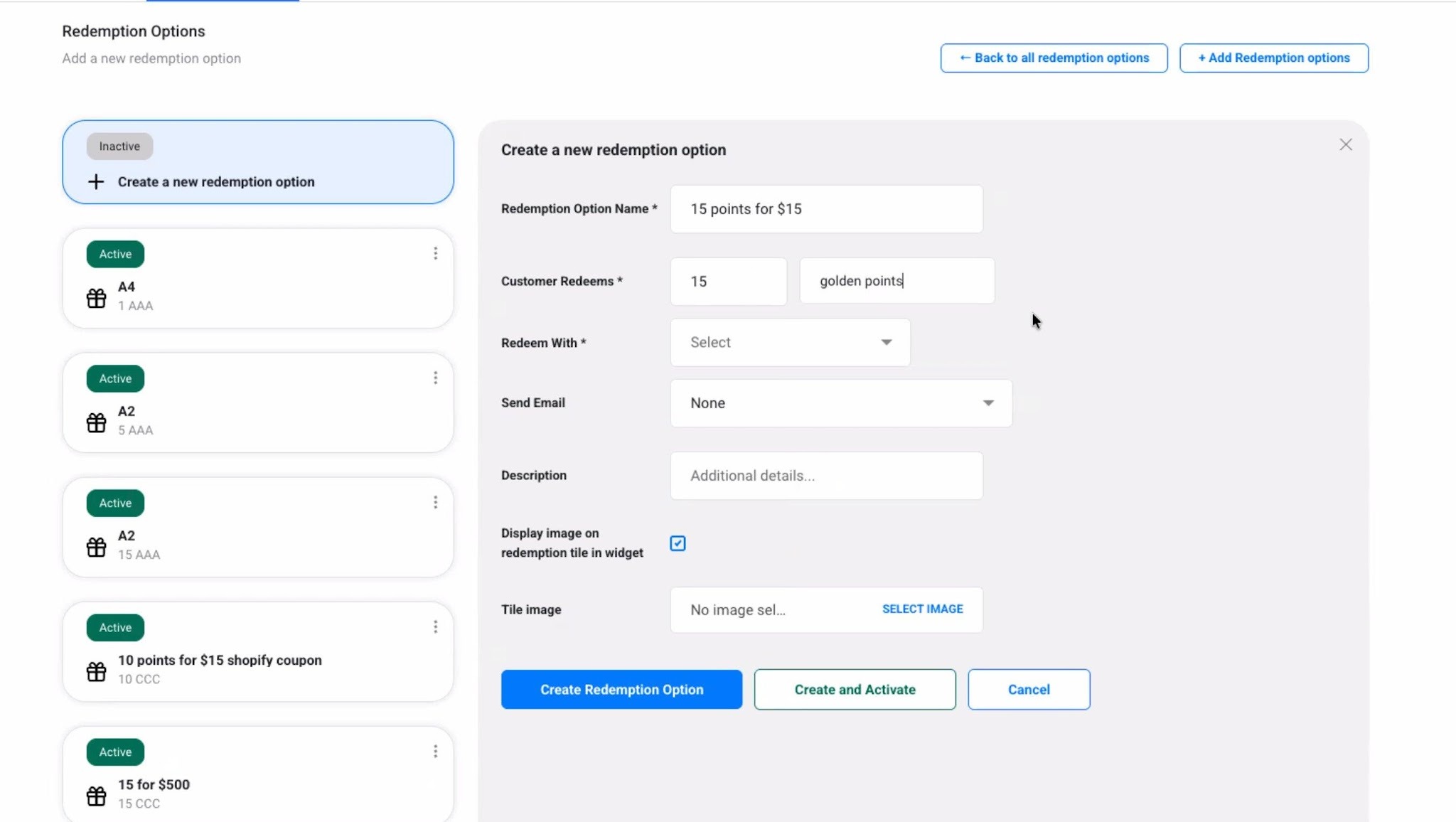
- Enter a Redemption Option Name. This is the internal label and also what customers see on their reward tile.
- Set Customer Redeems — the number of points required to claim this reward, and the currency (e.g. credits) from the adjacent field.
- Select a Redeem With type from the dropdown. This determines how the reward is delivered.
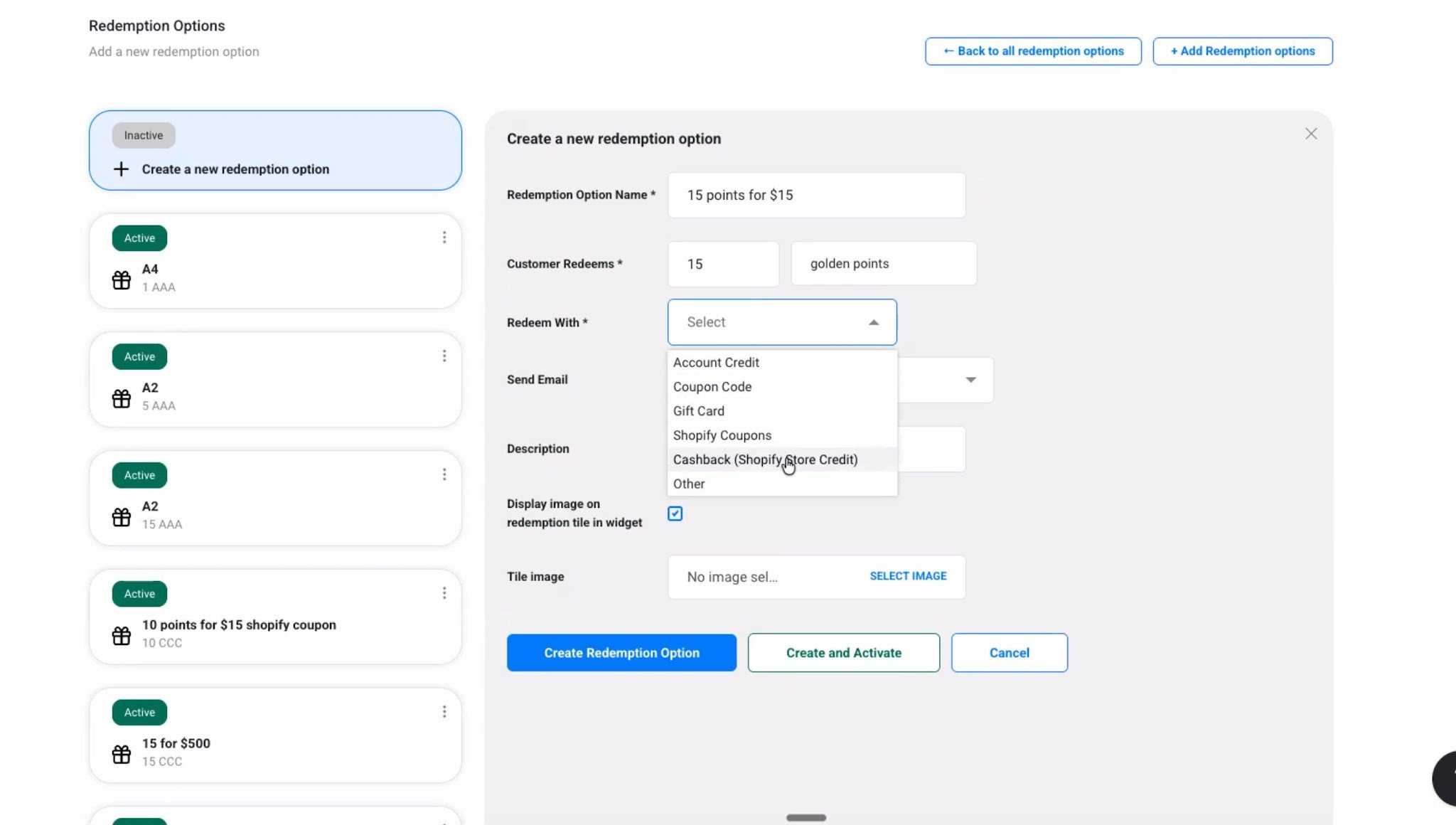
Reward Types Explained
Reward Type | How It Works |
Shopify Coupons | Generates a unique Shopify discount code per redemption. The code appears instantly on screen and is emailed to the customer. Click Modify Rules to configure the discount amount and eligibility. |
Account Credit | Issues store credit directly to the customer's on-site account. |
Coupon Code | Issues a pre-generated static coupon from a Friendbuy Code Bank. |
Gift Card (Tremendous) | Emails the customer a link to choose and claim a gift card via Tremendous. |
Cashback (Shopify Store Credit) | Applies Shopify native store credit to the customer's account. |
Other | Fires a webhook so your team can fulfill the reward in any custom way. |
- If you chose Shopify Coupons, click Modify Rules to set the discount amount, type, and eligibility conditions.
- Optionally select a Send Email template to notify the customer after redemption.
- Add a Description (optional) — shown on the reward tile to give customers more context.
- Toggle Display image on redemption tile if you want a product image on the reward card, then upload a Tile Image.
- Click Create and Activate to publish immediately, or Create Redemption Option to save as inactive.
Create a Reward Store Widget
A Reward Store Widget is the embeddable iframe customers interact with on your site. It shows their current balance and the rewards available for redemption. Create separate widgets for advocates and referred friends.
How to Create a Widget
- Click the Widgets tab under Reward Store.
- Click + Add Widget.
- Complete the Widget Details form
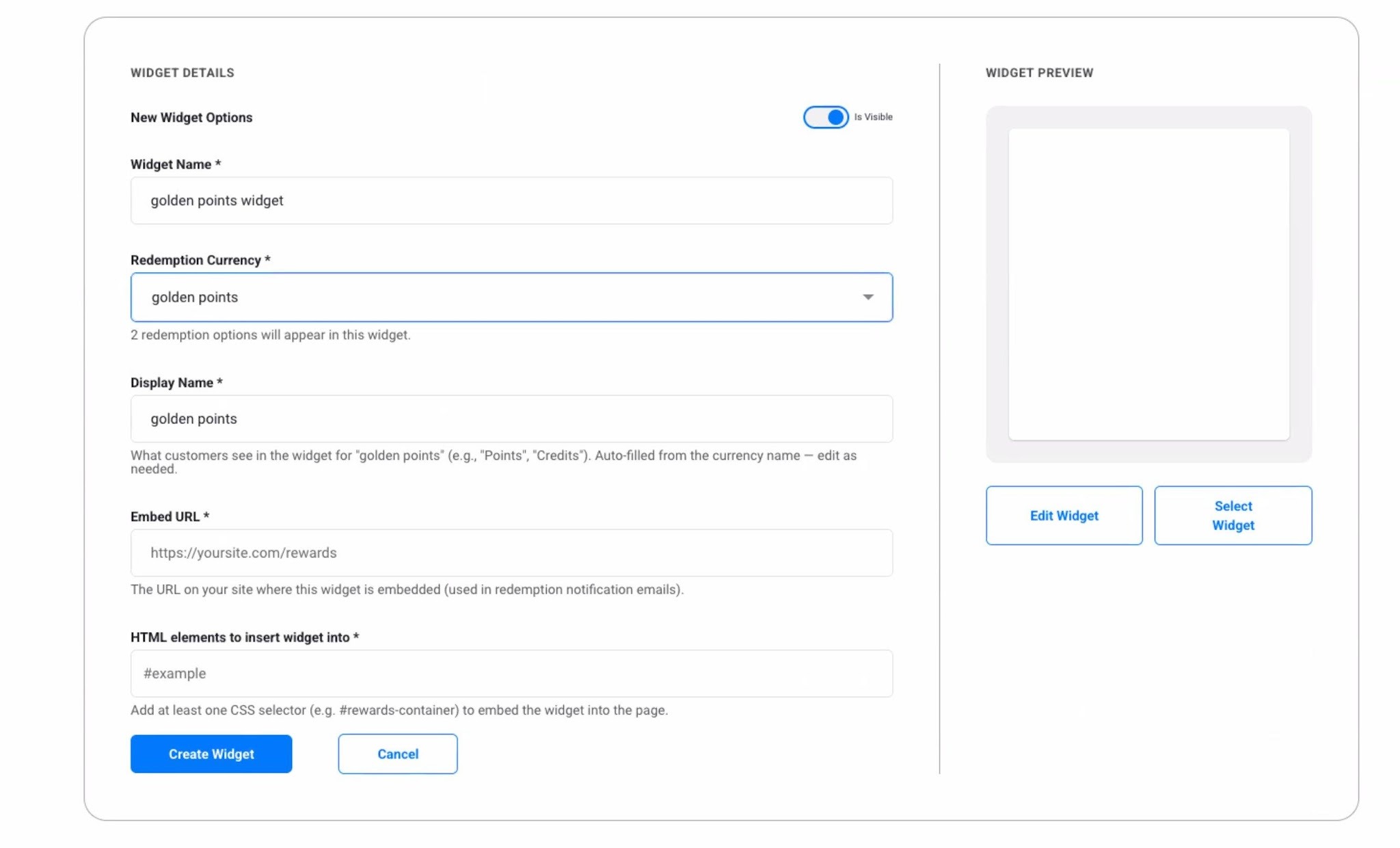
Widget Settings
Field | What to Enter |
Widget Name | An internal label. Customers do not see this. Example: Advocate Reward Store. |
Redemption Currency | The point currency this widget displays. Only active redemption options tied to this currency will appear. |
Display Name | The currency label shown to customers in the widget (e.g., "Points", "Stars"). Auto-filled from the currency name but fully editable. |
Embed URL | The URL on your site where this widget lives (e.g., yoursite.com/rewards). Included in reward emails so customers can click straight to the store. |
HTML Element Selector | The CSS selector of the page element where the widget will be injected (e.g., #rewards-container). |
- Click Create Widget to save.
- Click Edit Widget to open the Widget Builder and customize the appearance of your store
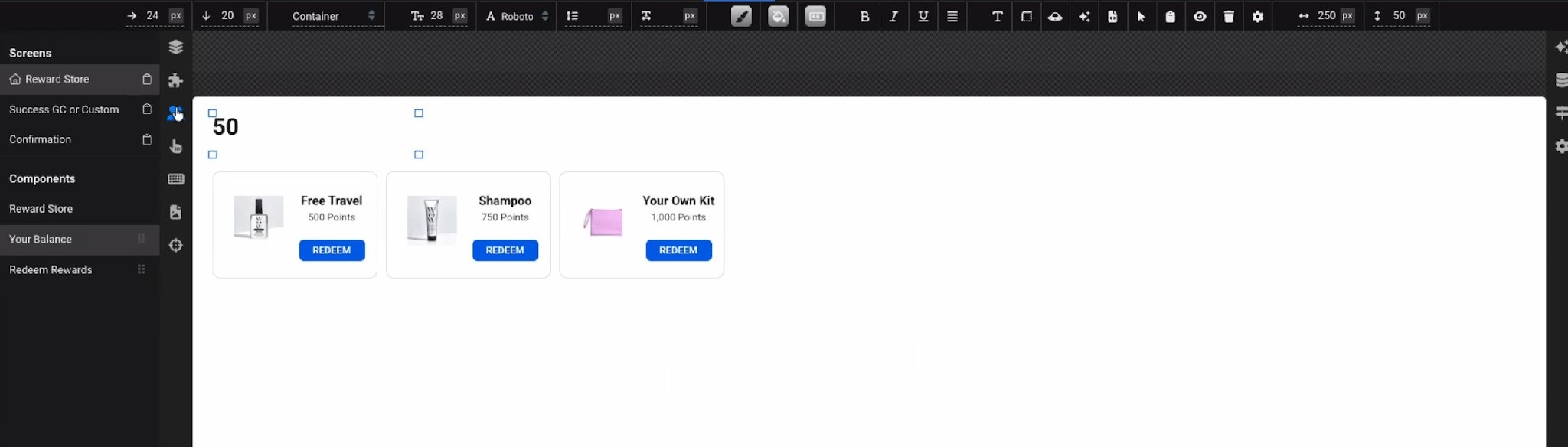
Widget Layout Sections
The widget contains three sections you can customize or rearrange in the Widget Builder:
- Header — Displays the customer's current point balance and the currency Display Name.
- Reward Grid — Shows all active redemption options as browsable cards with name, image, and point cost.
- Footer — Contains an editable link to your Terms and Conditions, plus optional Friendbuy attribution.
Connect the Reward Store to Your Campaign
Now that your redemption options and widget are ready, configure your referral campaign to issue Reward Store credits as the reward — separately for advocates and referred friends.
Advocate Reward
- Go to Referral and select the campaign you want to connect.
- Click the Advocate Reward tab at the top of the campaign editor
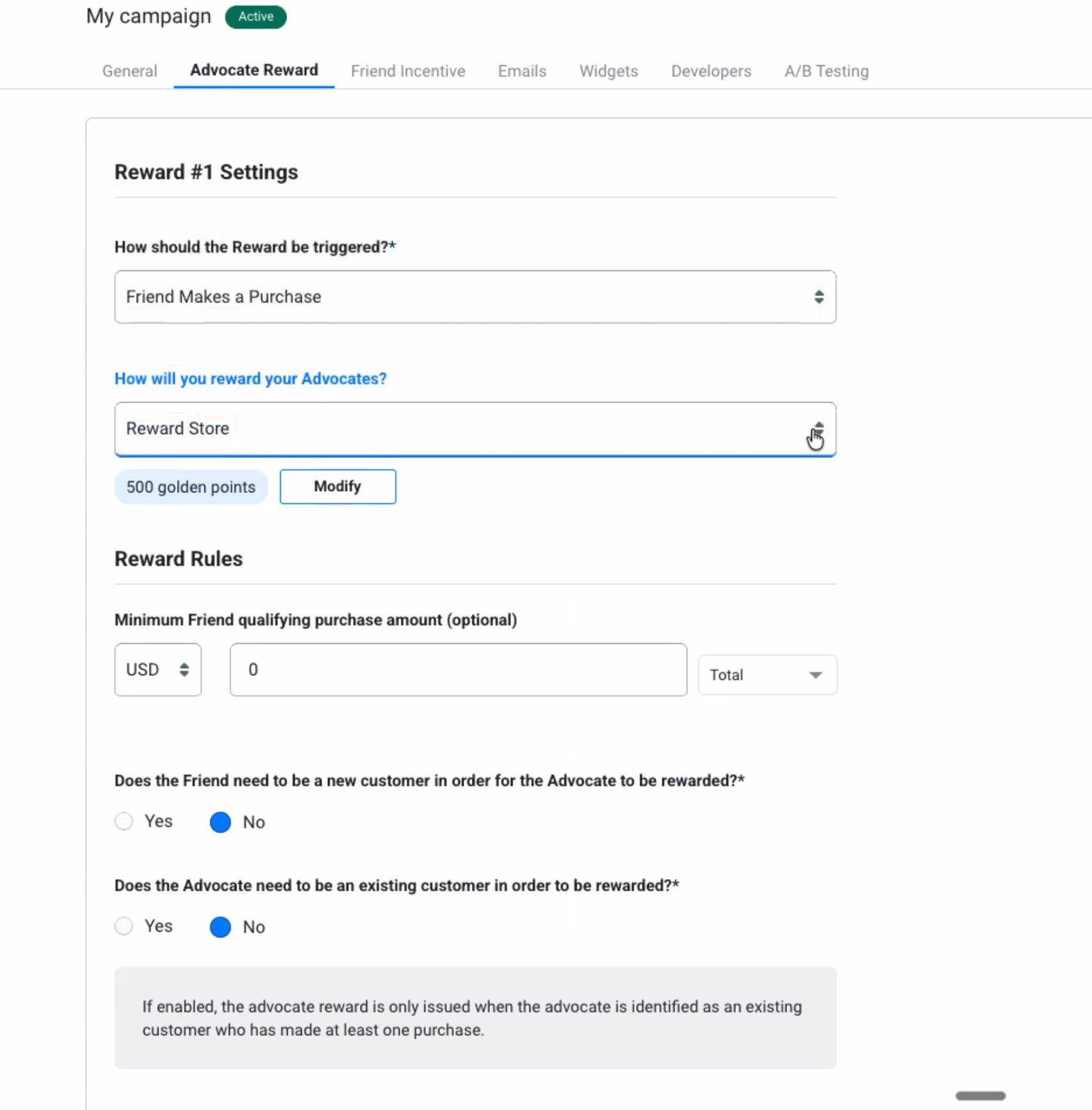
- Under How will you reward your Advocates?, select Reward Store from the dropdown.
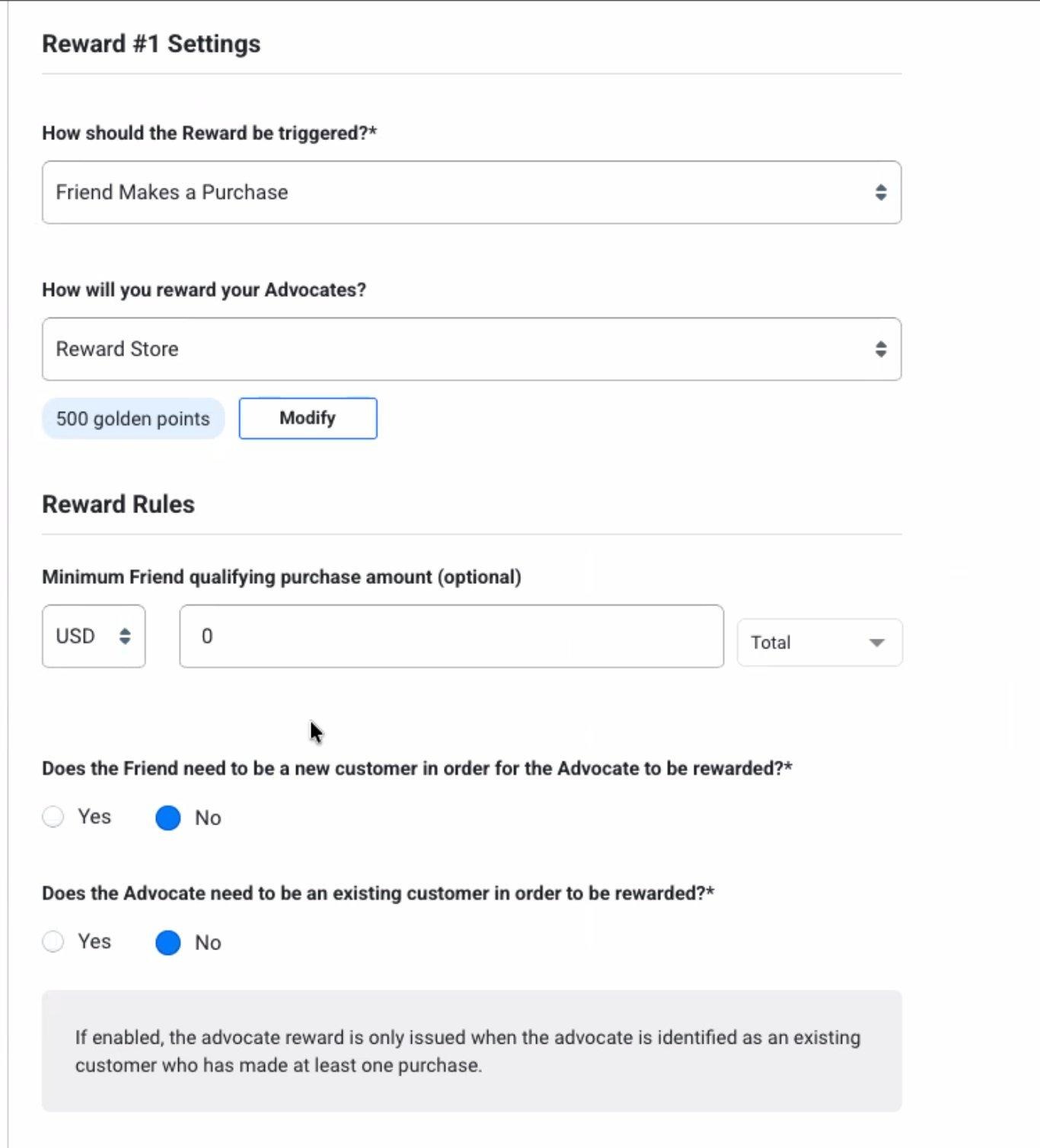
- A badge showing the current credit setting appears below the dropdown. Click Modify to change it.
- In the Reward Store modal, select the Currency and enter the Credit Amount to award per qualifying referral.
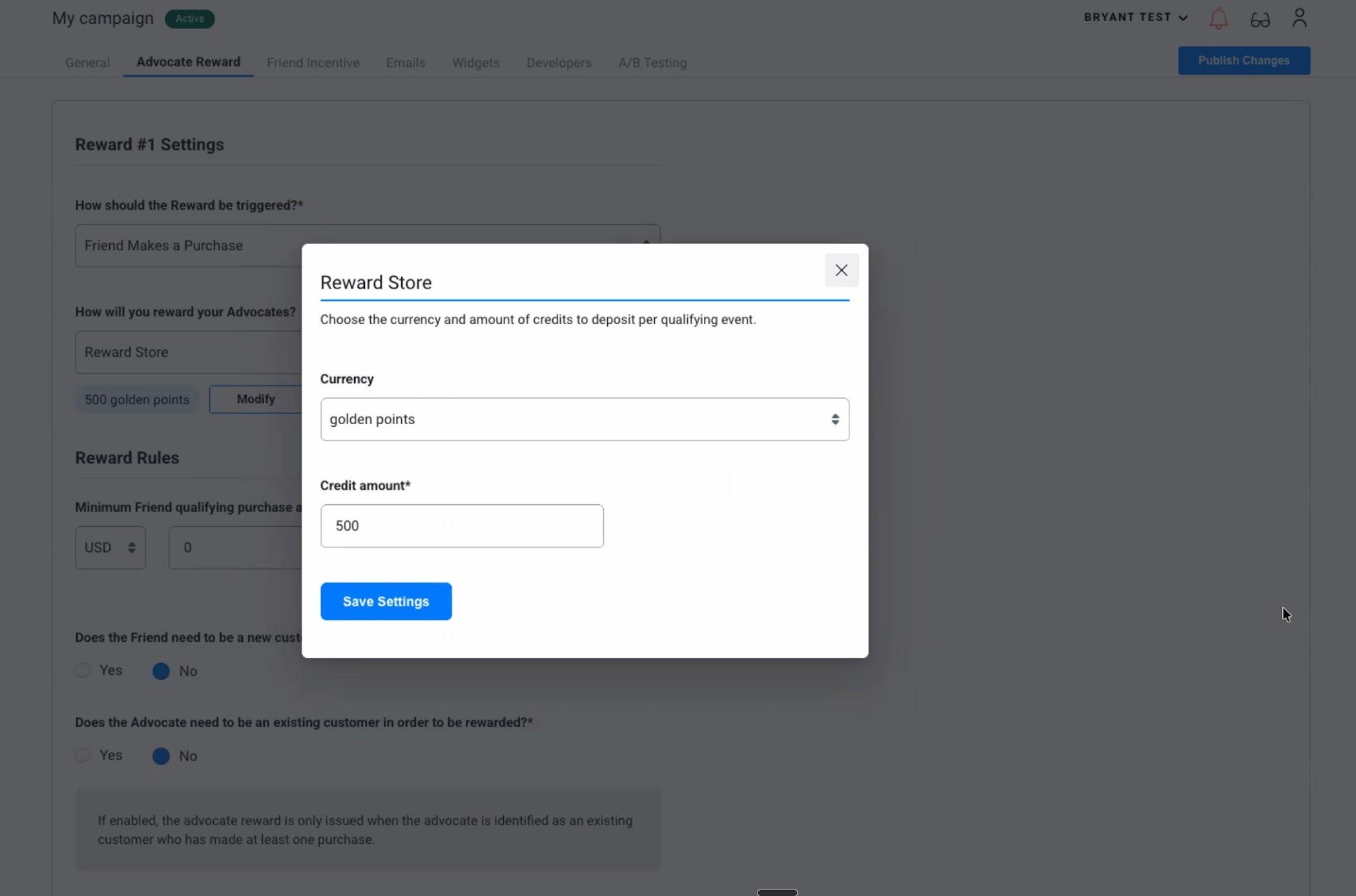
- Click Save Settings to close the modal.
- Click Publish Changes at the top right of the campaign to go live.
Friend Incentive (Optional)
You can also give referred friends the ability to choose their own reward after making a qualifying purchase.
- Within the same campaign, click the Friend Incentive tab.
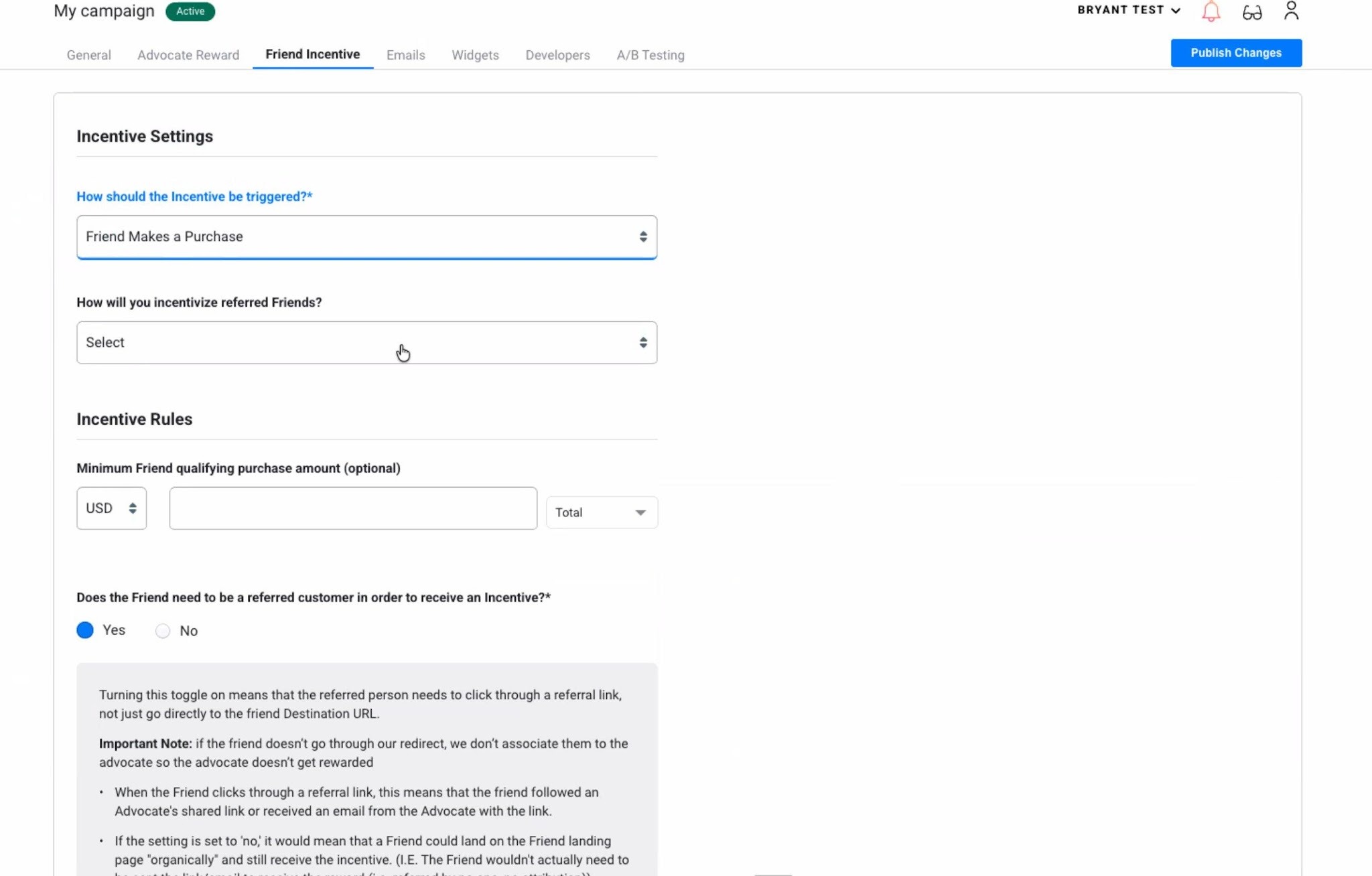
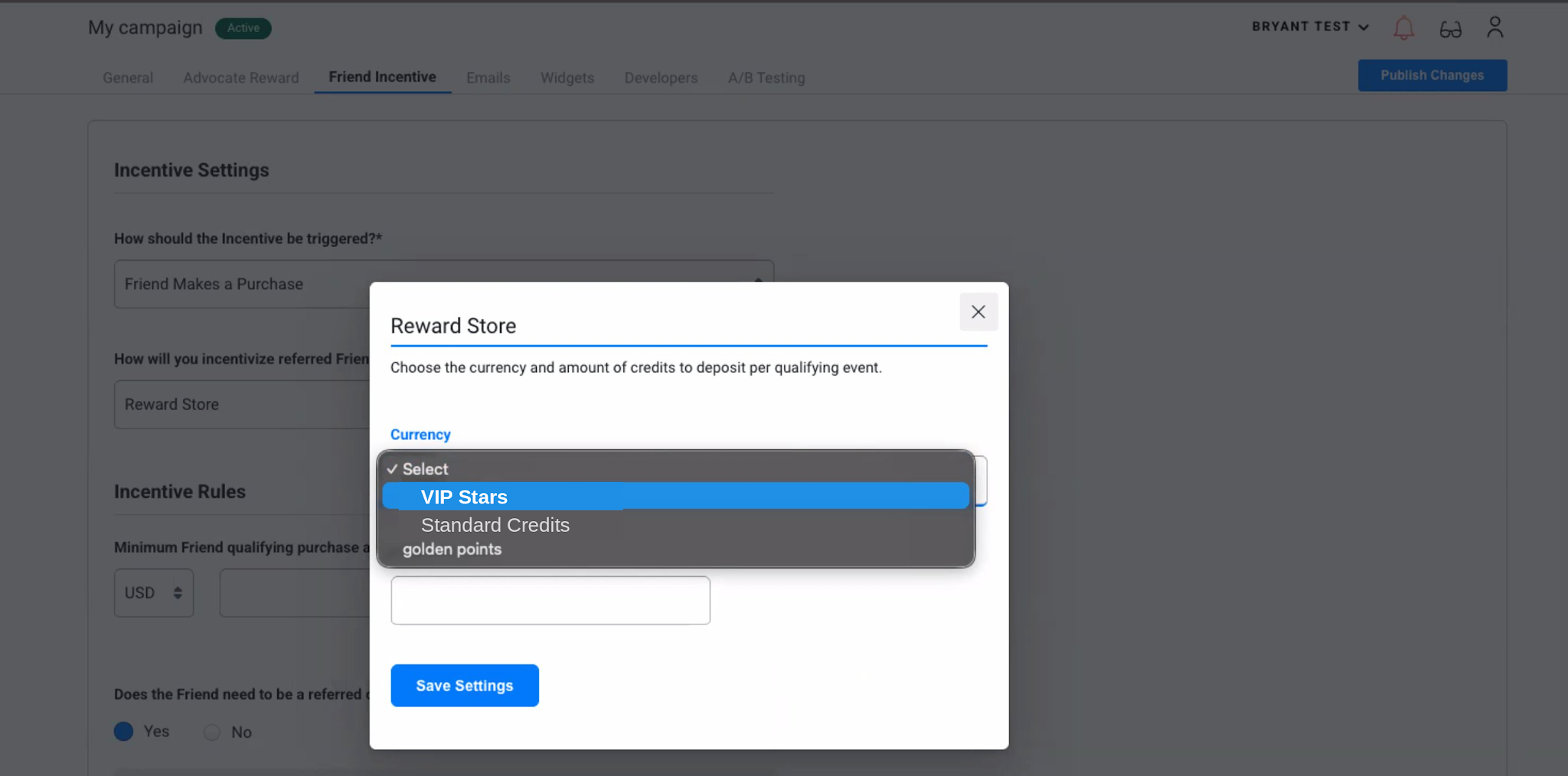
- Under How will you incentivize referred Friends?, select Reward Store.
- Click Modify, select the currency and credit amount for friends, then click Save Settings
- Review the Incentive Rules — set any minimum purchase requirements.
- Click Publish Changes
Embed the Widget on Your Site
The final step is adding the widget to your website. This requires placing a short HTML snippet on the page where your Reward Store will live
- In Reward Store > Widgets, locate your widget and click Edit Widget.
- Note the HTML Element Selector you entered (e.g., #rewards-container)
- On your website, add a container element with that ID to the page:
- Confirm the Friendbuy merchant SDK snippet is on the same page (found under Developer Center > Install Code).
- Publish your site changes. The Reward Store widget will inject automatically when a logged-in customer visits.
What Your Customers See
Here is a walkthrough of the complete customer experience — from first visit to successful redemption.
Browsing the Reward Store
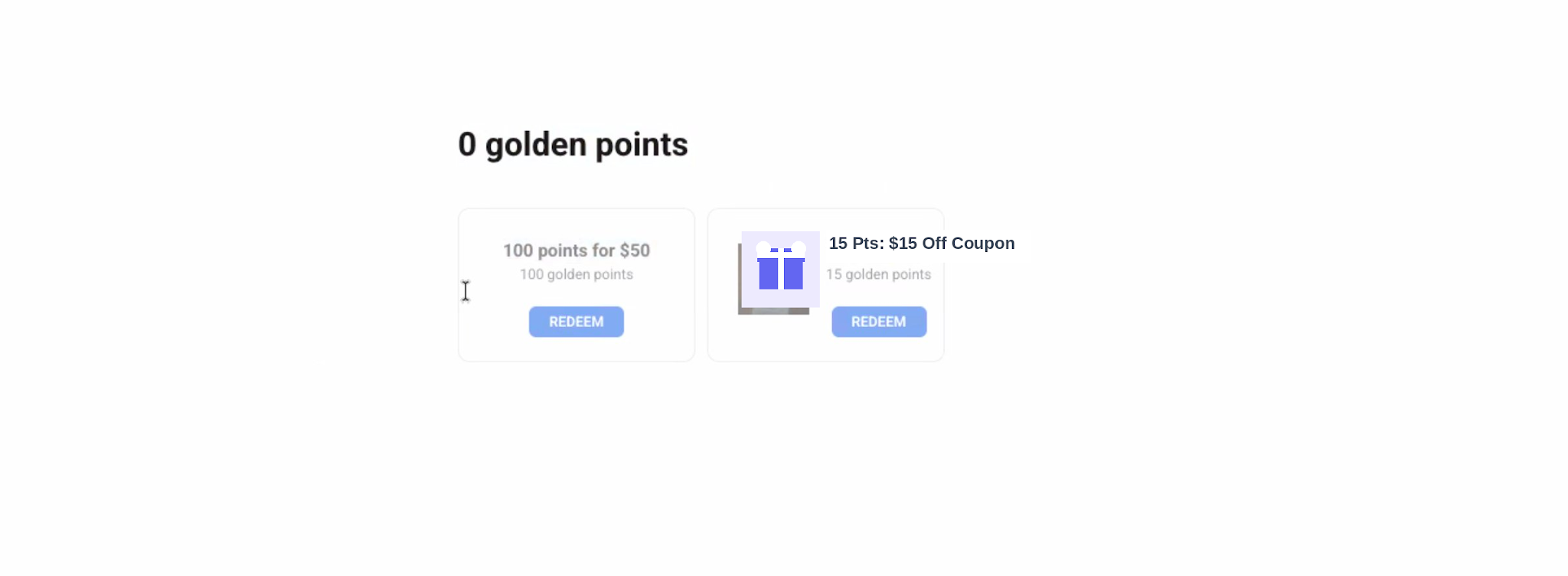
When a logged-in customer visits your Reward Store page, the widget loads their personalized balance and shows all eligible reward cards. Cards for rewards that require more points than the customer currently holds are visible but the Redeem button is greyed out, creating a motivating goal.
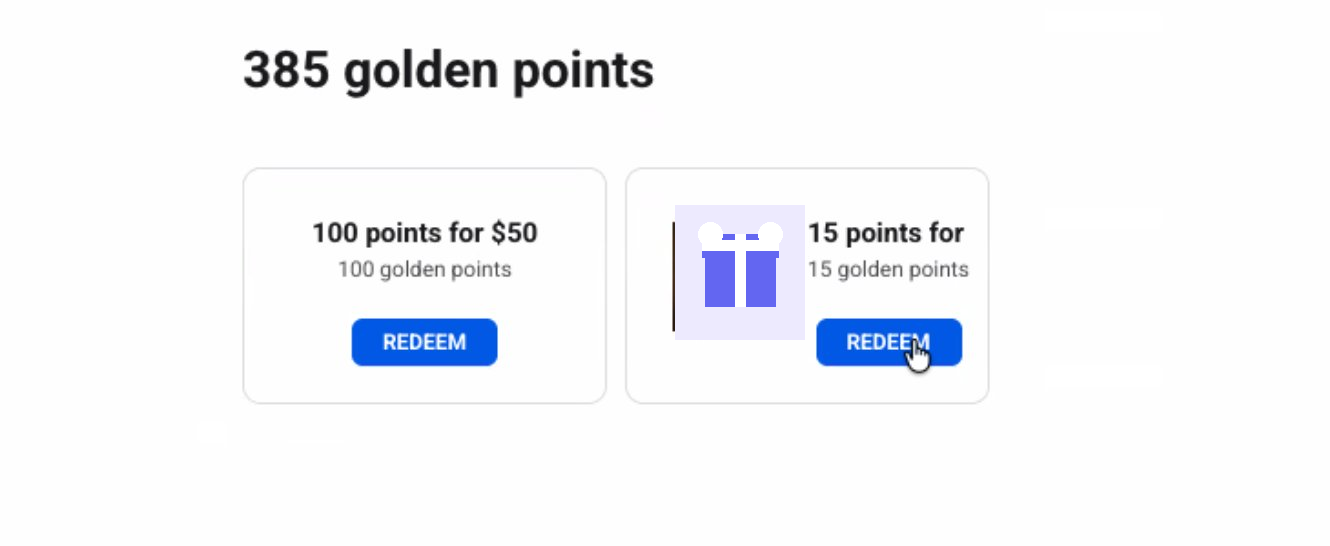
Once a customer earns credits, their balance updates in real time and the Redeem buttons become active.
Redeeming a Reward
Clicking Redeem on a reward card takes the customer to a confirmation screen before points are deducted and the reward is issued.
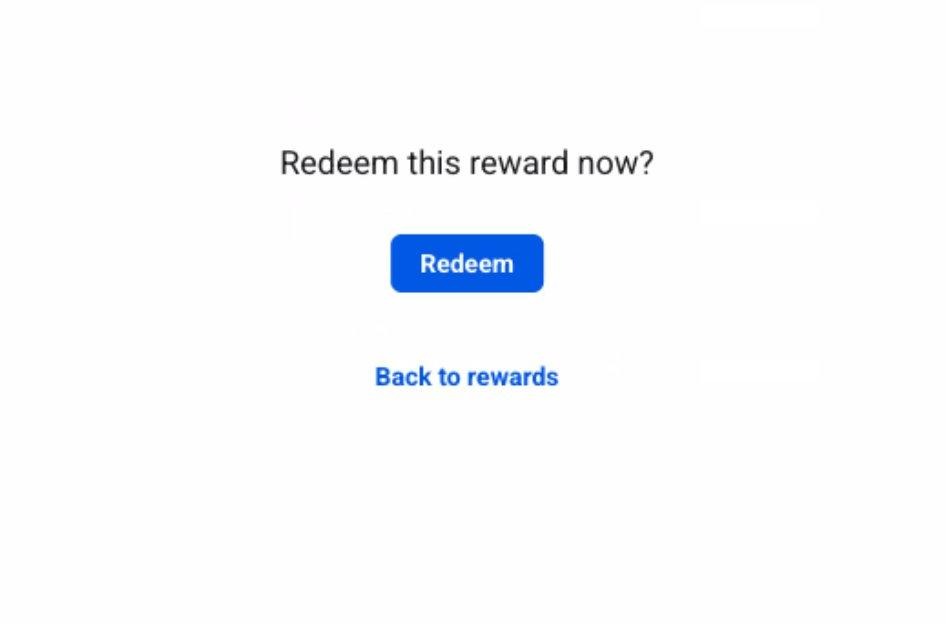
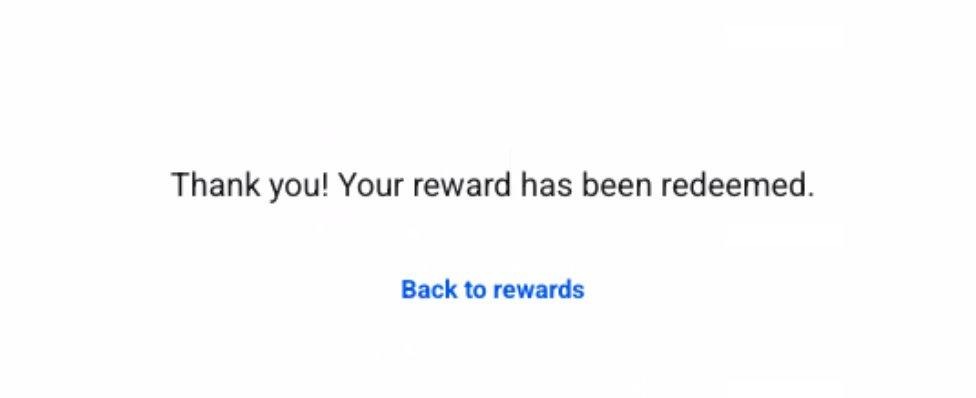
After confirming, the reward is delivered instantly. For Shopify Coupons, the discount code is shown on screen and automatically emailed to the customer.
Tracking Performance with Analytics
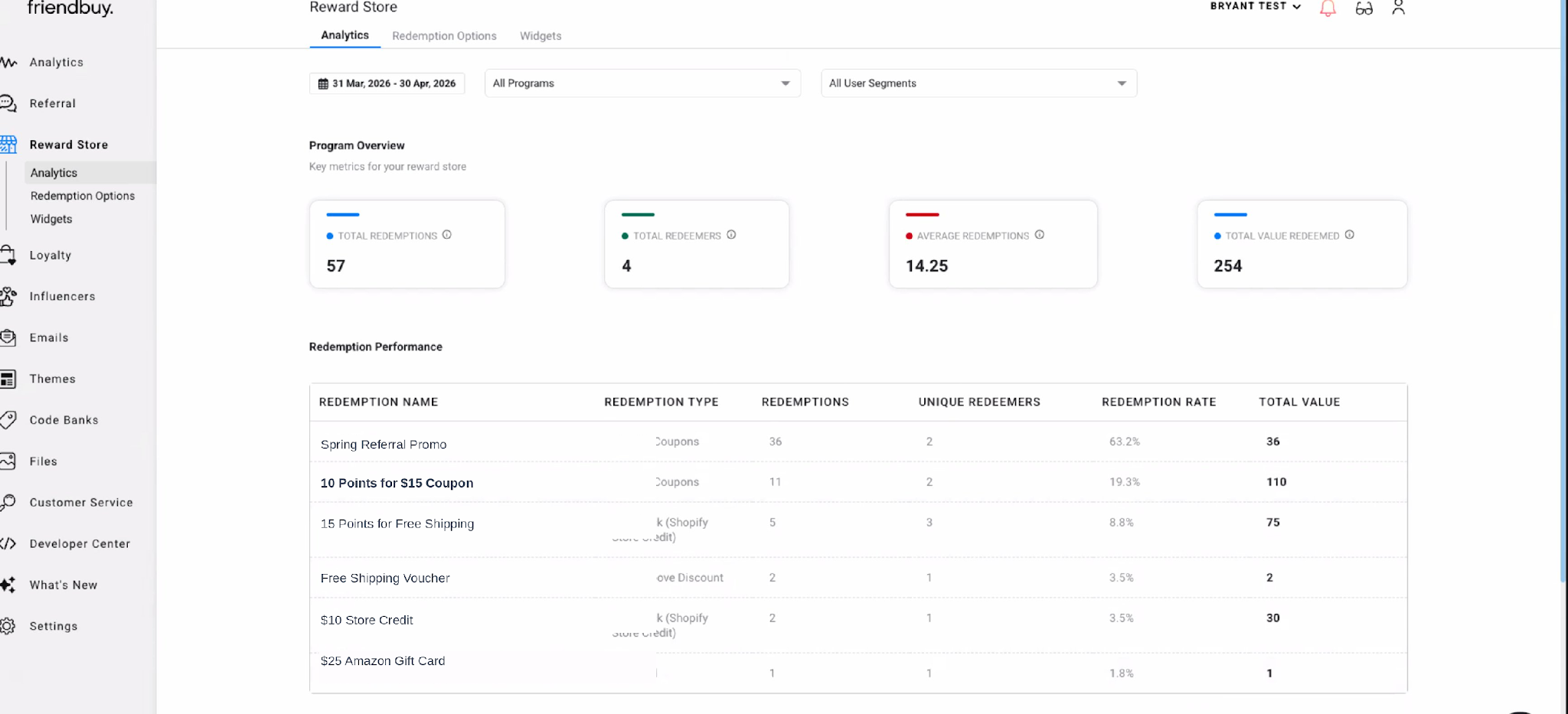
The Analytics tab under Reward Store gives you a complete view of how customers are engaging with your reward catalog. Use it to identify top-performing rewards, spot redemption gaps, and understand behavioral differences between advocates and friends.
Navigating to Analytics
- Click Reward Store in the left navigation.
- Click the Analytics tab.
Filtering Your Data
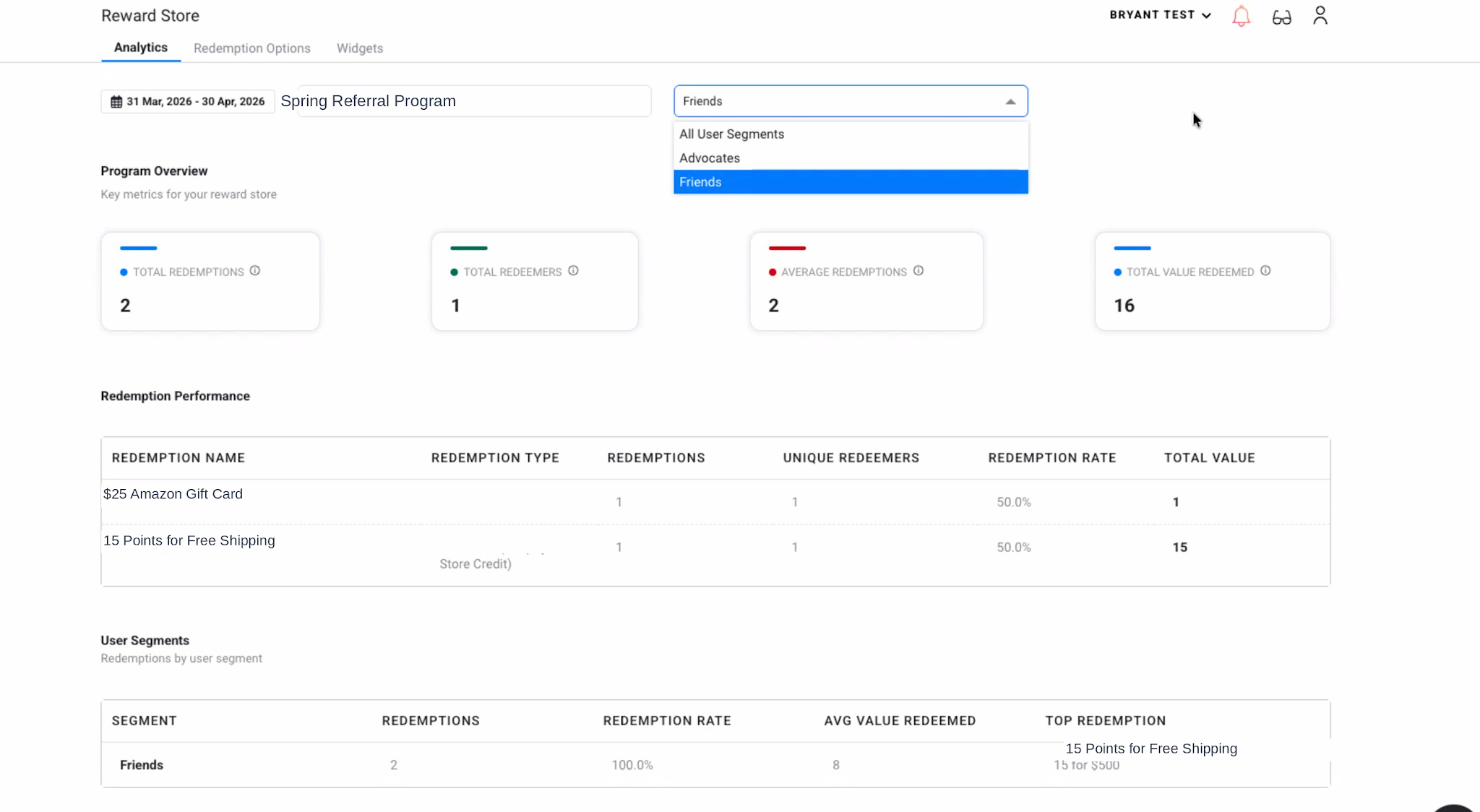
Use the controls at the top of the page to narrow the data to exactly what you need
- Date Range — Choose a preset (last 7 days, 30 days, quarter) or set a custom range.
- Program Filter — Filter to a specific referral program or view all programs.
- User Segment Filter — View data for All Users, Advocates only, or Friends only.
Program Overview — KPI Cards
The four summary cards at the top give you a quick health check of your Reward Store:
Metric | What It Means |
Total Redemptions | Total successful reward redemptions in the selected period. |
Total Redeemers | Number of unique customers who redeemed at least one reward. |
Average Redemptions | Average number of redemptions per unique redeemer. A rising number signals high engagement. |
Total Value Redeemed | Aggregate point value of all redemptions in your custom currency (e.g., 254 golden points). |
Redemption Performance Table
The table below the KPI cards breaks down activity per reward option:
Column | Description |
Redemption Name | Name of the specific redemption option. |
Redemption Type | The reward delivery method (e.g., Shopify Coupons, Gift Card). |
Redemptions | Total times this reward was redeemed in the period. |
Unique Redeemers | Number of distinct customers who redeemed this specific reward. |
Redemption Rate | Percentage of eligible customers who redeemed this reward. |
Total Value | Total point value consumed by all redemptions of this reward |
User Segment Breakdown
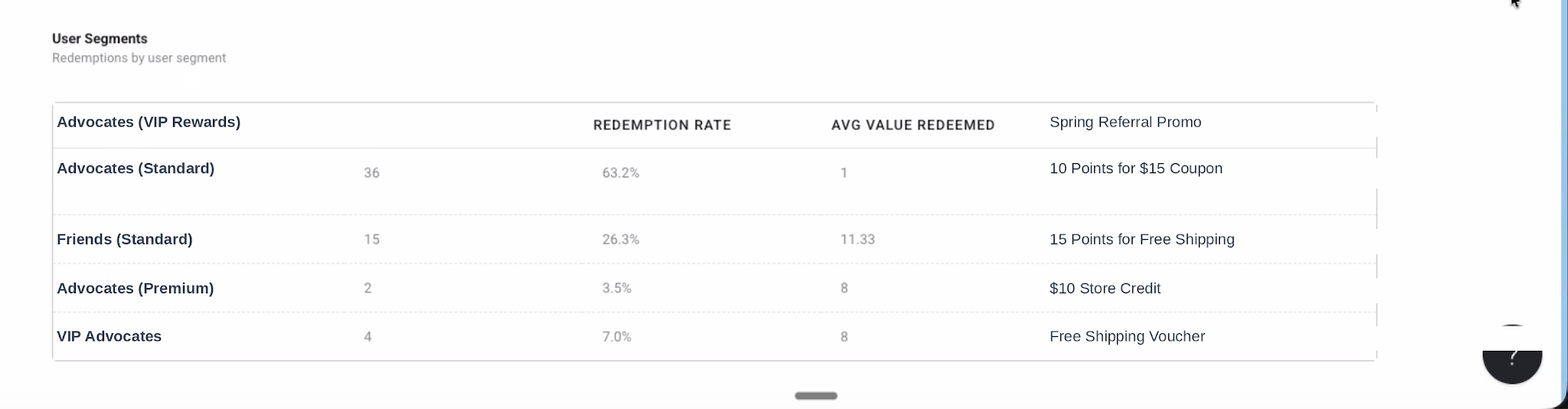
Scroll below the performance table to see redemption behavior broken out by user segment:
Column | Description |
Segment | The audience group (Advocates, Friends, or a custom segment name). |
Redemptions | Total redemptions from users in this segment. |
Redemption Rate | Percentage of eligible users in this segment who redeemed a reward. |
Avg Value Redeemed | Average point value redeemed per user in this segment. |
Top Redemption | The most popular reward option chosen by users in this segment. |
Managing Customer Balances
The Friendbuy Customer Service tool lets your support team look up any customer, view their complete Reward Store transaction history, and manually adjust balances when needed.
Viewing a Customer's Ledger
- Click Customer Service in the left navigation menu.
- Search for the customer by email address or customer ID.
- Click the Ledger History tab on their profile.
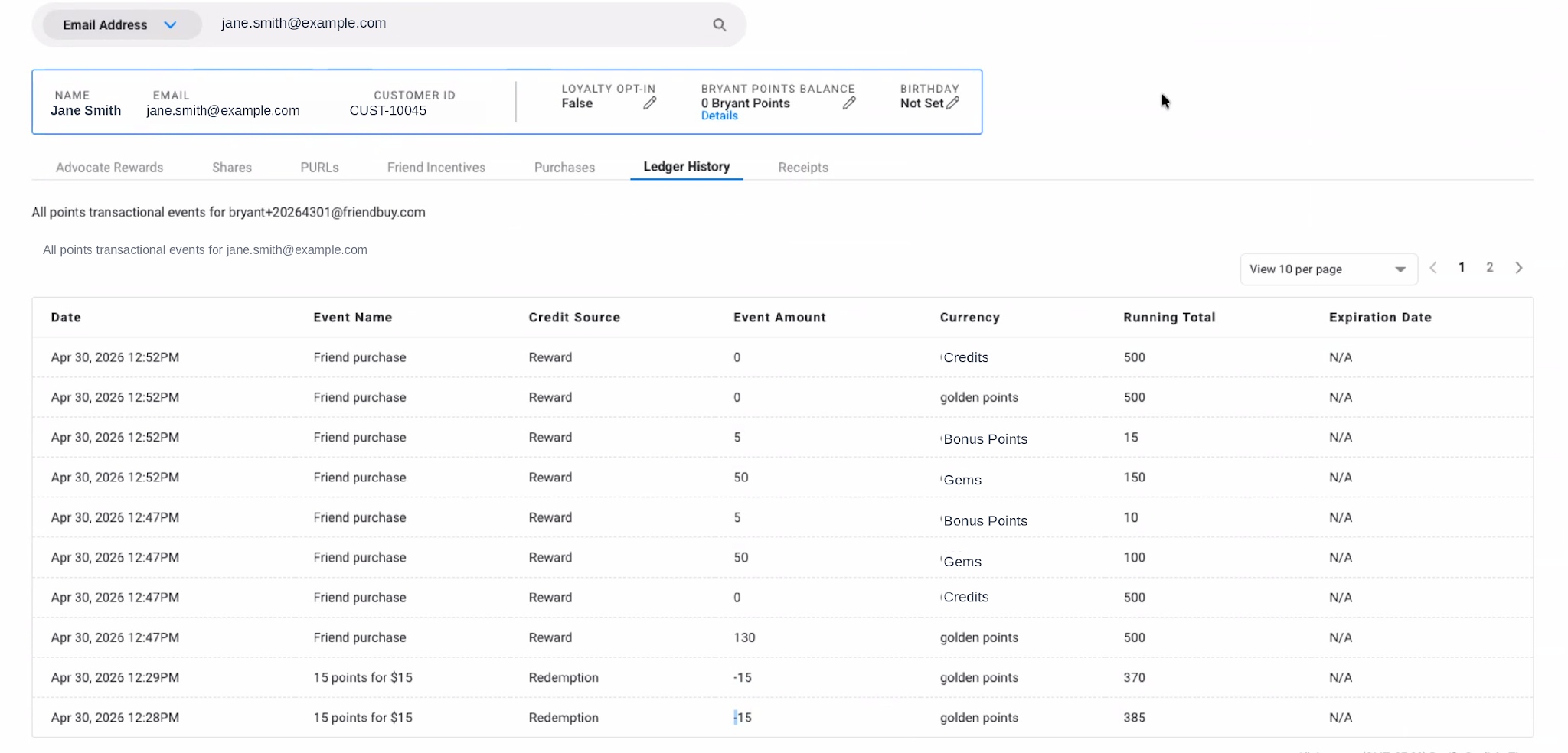
Column | Description |
Date | Timestamp of the transaction. |
Event Name | The action that triggered the transaction (e.g., Friend purchase, 15 Points for $15). |
Credit Source | Reward for credits earned. Redemption for points spent. |
Event Amount | Points added (positive) or deducted (negative) in this transaction. |
Currency | The point type affected (e.g., golden points, Credits). |
Running Total | The customer's cumulative balance in that currency after this transaction. |
Frequently Asked Questions
Can I have different rewards for advocates vs. referred friends?
Yes. Create separate redemption options using different point currencies, and create a separate widget per currency. Advocates and friends each see only the rewards tied to their respective currency, embedded at their own page URL.
What happens if a customer does not have enough points?
The Redeem button on that card is greyed out. The customer can still see the reward and how many points it requires, which creates a motivating goal. Their current balance is always shown at the top of the widget.
Are balances updated in real time?
Yes. When a customer earns credits or redeems a reward, their balance updates instantly in the widget without a page refresh.
Can I limit which rewards appear in a specific widget?
Yes. Each widget is bound to a single point currency, so only active redemption options requiring that currency will appear. Manage your currencies carefully to control each audience's visible catalog.
Can I set an expiration date on points?
Point expiration is configurable at the currency level. Contact your Customer Success Manager to enable and configure expiration rules.
What if a customer accidentally redeems the wrong reward?
Redemptions cannot be reversed automatically. Your support team can manually adjust the customer's balance from the Customer Service tool and issue the correct reward separately. Clear tile images and descriptions help minimize accidental redemptions.
Do I need a developer to install the Reward Store?
Installation requires adding a container element to your page HTML and ensuring the Friendbuy embed snippet is present. Most Shopify merchants can handle this without a developer, but complex storefronts may benefit from developer assistance.